Showing posts with label phonology. Show all posts

Sunday, January 19, 2014

A Little Final Consonant Deletion Karma

This year the majority of my 3-year old articulation students have a little final consonant deletion going on.  Not surprising, I know.  Well, I've been plugging away at getting them to mark those final consonants and they're doing great!  Next step?  I pulled out the FCD story from Read Aloud Minimal Contrast Stories With Activities from Super Duper.  This one is about a monkey who finds all sorts of strange things in her mailbox.  I got the story printed for my group and grabbed some markers.  And then it occurred to me...Hey! I have a monkey!  I got him with my Talk it, Rock it (formerly Kids Express Train) CDs.  Wait a minute! I also have a mailbox!  (Thanks Target Dollar Spot!)  My kids had a blast making the monkey look in the mailbox for their target words!  


Don't you love it when your therapy plan ends up being even better than you had planned??  Have you ever planned something and had it transform into something even better?


Friday, July 26, 2013

On the Right Track! Sound Sorting and Articulation Game

Phew!  I've been working on this one for a while now!  It's a good sized packet and has a lot of images, so it took me a looonng time to finish!  (Not to mention the fact that I had to put this project on hold so I could finish progress reports, write evaluations, and deal with life in general!).

I bought this cute train themed clip art from Scrappin' Doodles and thought the carts would make for a good sorting activity.  Then I thought..."Gee, I haven't done an articulation activity in a while."  And that's how "On the Right Track! Sound Sorting and Articulation Game" was born!


Basically, there are train cars and cargo boxes.  The cargo boxes have pictures of commonly targeted articulation targets. There are 11 cargo boxes (target words) for each of the following phonemes in initial, medial, and final word positions: /k/, /g/, /f/, /v/, /s/, /z/, /l/, /r/, /sh/, /ch/, and /th/.  There are two ways you can use this activity.


Sound Sorting Activity:
First, it can be played as a Sound Position Sorting Game.  To do this, you need to assemble the train by attaching the train cars. Students sort the cargo by sound position (Beginning, Middle, End):


You can also use the blank train and use a dry erase marker to label each cart with phonemes (e.g., /k/ vs. /g/) to sort by phonemes rather than by word positions.  I have one little guy who is constantly substituting /f/ for /s/.  We're currently working on getting him to identify the difference:


Articulation Game:
For this activity, you will need to prepare enough trains for each player. Use cards with each student’s target sound/word positions and mix in some game play cards. If a students says their word correctly however many times you wish, they can add it to their train. The player with the most cargo on their train at the end of the game is the winner.


I purposely did not include words on these cards for those who want to use it as a sorting activity.  If enough people let me know that they want words, I'll update the file to include cargo cars with and without words.

This product has been around for a while, but I haven't had a chance to blog about it yet!  You can find it in my TPT store HERE.  I know you guys are always so creative, so I want to know...what would you do with the blank trains?


Friday, June 21, 2013

App Review: Phono Learning Center


Hey everyone! Today I'm sharing another super-fun app from Smarty Ears! Phono Learning Center (PLC) is designed to help students who are working on sound production skills. This app is based upon Barbara Hodson's Cycles Approach and was designed for students who are highly unintelligible. The app is designed for use with individual students or groups of students. There are four fun activities to choose from as well!


When you open PLC, you see the menu screen above. If it's your first time, you might want to check out the "support" menu. Here you can read a brief paragraph describing the app, watch a video tutorial, contact Smarty Ears to report a problem, view more Smarty Ears apps, Backup/Restore, and view/share homework pages.


When you're ready to begin, you can start a "new session." Now you will enter your student(s) name(s) and target(s). 


If you can't read them, here is a list of the targets:

Primary Targets: (above)
  • Syllables 
  • Initial Consonants 
  • Final Consonants 
  • S Clusters 
  • Final S Clusters 
  • Posterior Contrasts 
  • Anterior Contrasts 
  • Liquids 

Secondary Targets: (below)
  • Voicing Contrasts 
  • Stridents 
  • Palatals 
  • Consonant Sequences 
  • Medial K 
  • Postvocalic R 

Advanced:
  • Complex Consonants 
  • Multisyllabic Words 
*Advanced targets for students 8 and older. For both secondary and advanced targets incorporate minimal pairs and increasing complexity.


Selecting some of the targets will require you to add more information...


You are able to modify some settings for each individual students. You can turn on/off Auditory Bombardment and select a level of complexity (Words, Phrases, Sentences). You can also add a picture for each player from the camera/photo roll, or select an avatar. There are a ton of avatars to choose from! (The green haired guy was, for whatever reason, a favorite of my male students!).


You can modify the game settings from the "add player" screen as well by tapping the gear button in the upper right hand corner. I think most of the settings (below) are self explanatory, but I would like to point out the "scoring style" options. With "Standard," you can mark a response using "Missed," "Almost," or "Got it." With "Level of Prompts," you can mark a student's response using "Prompted," "Imitated" or "Correct." 


Auditory Bombardment:
If you have this option selected, a student will begin the auditory bombardment activity, but only for individual sessions (this option automatically disables when using in a group). Several balloons float from the bottom to the top of the screen. Students can "pop" the balloons and, each time they do, hear one of their target words. 


Balloon:


In this game, a flash card appears on the left of the screen. The student says the word and drags the card to the balloon. With each card that is brought to the balloon, the balloon inflates a little bit more. Once "full," the balloon takes off! 


Matching:


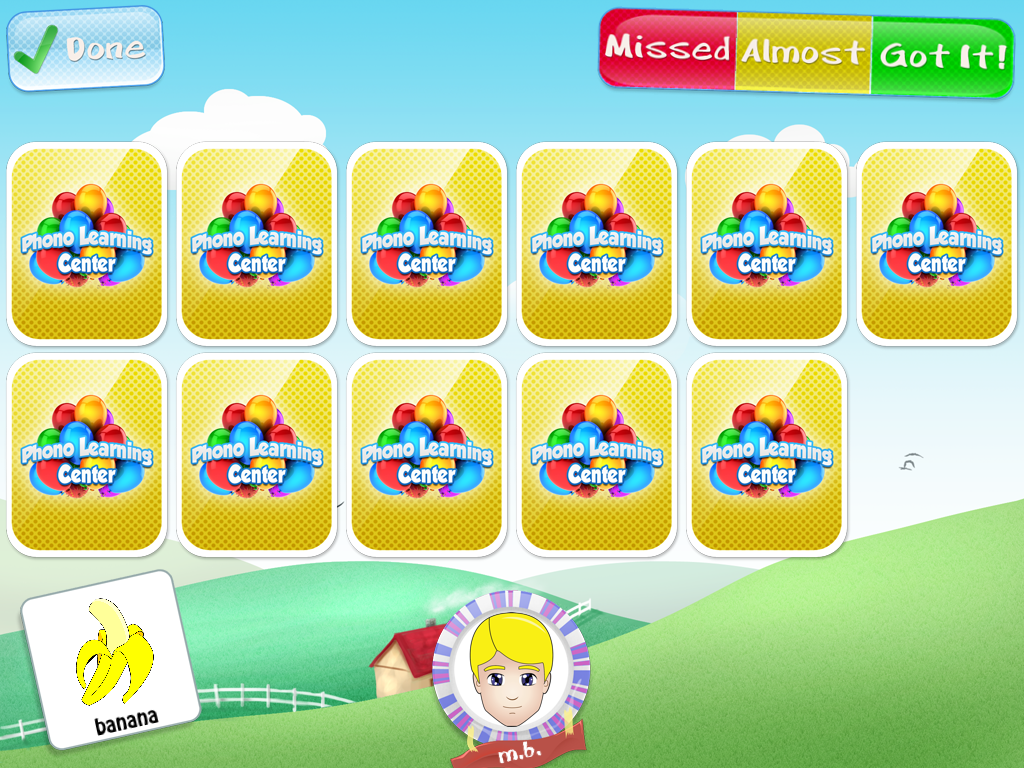
This activity is like a modified "memory" or "concentration" game. Basically, one card is turned over and the child can tap a card that is face-down to find a match. The nice thing about this game is that they can practice the word from each card as they turn them over, allowing for multiple practices. Also, for kids with reduced attention, it limits their focus to finding one card, not two.


Puzzle:


For this game, puzzle pieces with target words appear. Students say their target words and drag to the puzzle area. They do NOT have to line up the pieces to a specific spot in the puzzle frame. With each puzzle piece added, a portion of a picture appears. 


Basket Paper:


This game has been the favorite with all the kids (Matching has been a close second). Students say their word and tap the paper to crumple it. Then they have to flick it toward the basketball hoop. It is possible to miss the hoop in this game, so a few of my groups insisted on keeping score!


Other Features:


Like most of the apps from Smarty Ears, this app has built in capacity to generate reports for your sessions. This is great for monitoring progress over time. PLC is also compatible with Therapy Report Center (TRC), a free app that allows you to store reports from all compatible Smarty Ears apps!

Remember that "Support" icon on the main menu? There's an option there that allows you to generate homework pages! You can email these directly to parents or email to yourself for printing. 


The Pros:
  • This is the only app I'm aware of that targets phonology from the cycles framework, an evidence based approach to treating phonological disorders. 
  • Auditory bombardment - I have yet to see this in an app and it's vital to so many kids with articulation/phonology objectives! 
  • The options available for scoring responses. This app allows you to do more than just identify a response as correct/incorrect. You can also classify by level of prompts needed. 
  • You can use it in a group!!! 
  • The variety/duration of games included. These games play fairly quickly. If you are using this app in a group, you can have each child pick a game for the group or pick their own game. Each child is bound to have a favorite! 
  • Compatibility with TRC! I've said it before, I'll say it again...when it's time to write progress reports, it's so handy having all of your data in one spot! 
  • If you don't want to use the cycles approach, you can turn it off! 

Things I could change in an update:
  • When you finish a puzzle, the "Terminate Session/Switch Game" box appears very quickly and covers the puzzle. I would love it if the box came a little later, was a bit smaller, was moved to a corner...I'm not sure what the best thing to do with the box would be, but I do know that I would like to have a minute or two for the students to look at/describe the picture from the puzzle. 

The Bottom Line:
There are a lot of great articulation apps out there, but not as many that are really geared toward phonology. To the best of my knowlege, this is the only one that targets phonology from the cycles perspective. Phono Learning Center is another fantastic app from Smarty Ears! I love the versatility of this app. You can work on phonological processes or specific speech sounds, modify the way you score responses, and import all of your data into TRC. I also love the games as well. They're motivating and fun for students, and occasionally incite a little competition! 

Phono Learning Center sells for $24.99 in iTunes. PLC is currently on sale for the introductory price of $19.99 but not for long, so hurry up and grab it while it's still on sale!


Monday, March 18, 2013

App Review: Phonological Processes


Hey everyone!  I had the opportunity to review a FANTASTIC new app from the Virtual Speech Center!  This app is simply called "Phonological Processes" and it targets (you guessed it!) phonological processes! Click HERE for more information and to view a video of the app in action.  Phonological Processes sells for $16.99 in iTunes and targets the following phonological processes:  
  • Affrication
  • Deaffrication
  • Cluster reduction L
  • Cluster reduction R
  • Cluster reduction S
  • Cluster reduction mixed
  • Final consonant deletion
  • Fronting
  • Gliding of L
  • Gliding of R
  • Gliding mixed
  • Prevocalic voicing
  • Stopping of fricatives
  • Stopping of affricates
  • Stopping mixed.

The description on their website states that "The Phonological Processes app was created by a certified speech and language pathologist for children ages 4 and up who exhibit phonological disorders or delays. This research-based app implements a linguistic approach for treatment of phonological disorders by engaging users in minimal pair contrast therapy."  

One of the things I love the most about the Virtual Speech Center's apps is that they cite the evidence behind their products (in this case, Minimal Pair Contrast Therapy) right on the product page - Very handy if you work in a setting that requires you to state your evidence!  


Getting Started


Now let's take a look at Phonological Processes.  As you can see in the screenshot above, there are three areas, plus the start button.  On the "Info" screen, you will see a description of the app and a run-down of how to use it.  In addition, there are links to Virtual Speech Center's other apps, a link to sign up to receive their email newsletter, and links to VSC's Facebook and Twitter pages:  


Info Screen

In the "Reports" Section, you can view data collected during your sessions:

Reports

From the settings screen, you can customize the options of the app. These include User Alternate Count, Audio, Auto Paging, Random Paging, and Show Instructions.


Settings

Using the App


 Once you've entered your students and selected the settings you wish to use, you're ready to begin!


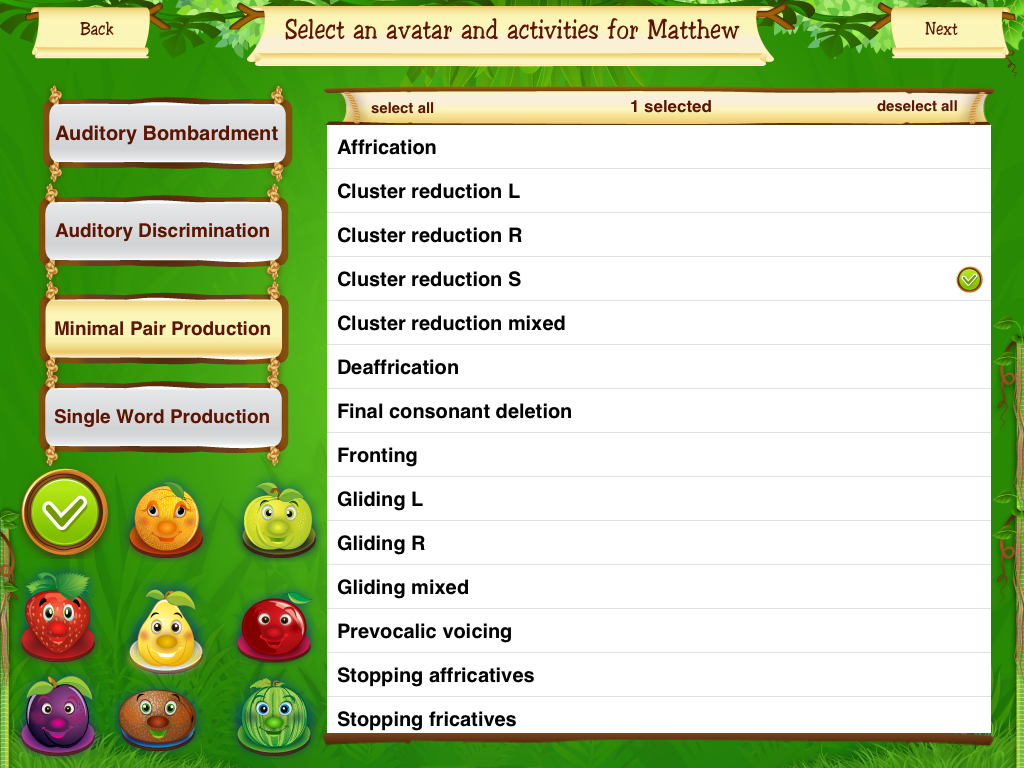
As you can see from the screen above, there are four ways to target the phonological processes:

1.  Auditory Bombardment:  In this mode, the app names the two pictures.  You can record a child's productions by tapping the red circle button on the left and play back using the green arrow under it.  You can also repeat both recordings by tapping the repeat button or hear individual words by tapping the speaker icon under the image.


2.  Auditory Discrimination:  In this mode, the narrator asks the student to "Show me the ___."  You can record/play back student productions in this mode as well.  In this mode, data is automatically collected.


 3.  Minimal Pair Production:  In this mode, the student is asked to name both pictures.  You can record the student's productions and compare to the model.  In this mode, you can mark a student's productions as correct or incorrect.  There's a "plink" type of sound associated with correct responses and another sound (not harsh or unpleasant) for incorrect.


 4.  Single Word Production:  In this mode, the student is asked to name the picture containing the target process.  As in "Minimal Pair Production," you can record/play back child productions, compare to the model, and mark productions as correct/incorrect.


The screenshots above are from the "Flashcard" function.  There is also a "Board Game" option.  Like in "Flashcards," you select the phonological process you wish to target for each student.  To play the board game, the student also selects a game token (a piece of fruit):


The student(s) work their way along the jungle river to the dock at the other end.  Notice the animals stationed along the way?  If you land on one of these, the animal will do something and make its way to the dock as well (e.g., the parrot flies, the hippo roars and splashes).  The exception is the snake, which will make you go back one space.


You get the same type of pop-up in the game as you would in flashcards, so you can target the same objectives, but in a more reinforcing manner:


I worked on /s/ cluster reduction when I took the screenshots above, but here are some examples of other phonological processes...

Final Consonant Deletion

Gliding /l/

Prevocalic Voicing


What I liked:

  • I haven't tried an app that targets phonological processes before this one.  If I wanted to work on final consonant deletion using an app, I had to pick multiple phonemes in word final position.  This is a much faster way to work on phonology!
  • The jungle/safari theme is adorable!  The kids loved the board game and all wanted to land on the hippo and the snake (even though it sent them back a space).
  • The multiple ways to target the processes - Auditory Bombardment, Auditory Discrimination, Minimal Pair Production, and Single Word Production
  • The number of phonological processes included.  I used this app for over a week with my articulation and phonology groups and didn't have a need for a target that was not included!

Things that could be improved:

  • I did notice a couple of minor bugs that I'm assuming will be corrected in an update.  For example, after using "Single Word Production" mode for a while, the instructions started asking students to "Name these two pictures" when only one picture was there.
  • This app uses real-life photos.  This is generally a strength for most apps.  However, when you're targeting articulation/phonology, some words are difficult to depict in a picture.  Because of this, some of the images for target words are a bit of a stretch (e.g., a fully made bed for "sheet"or a needle and thread for "cheap").  
  • When you reach the end of the board game, you are immediately brought back to the beginning.  I'd love to see some sort of "ending" and option to start over or finish your session.
  • If you turn of audio in the settings, you do not hear the narrator.  However, you do still hear the noises associated with a correct/incorrect response.  I'd love to see an option to turn off these sounds.
The bottom line:

If you have students working on articulation/phonology this is a great app!  Minimal pairs are a great way to work on processes and it's so convenient to have that option in app form!  My kids enjoyed it (especially the board game function).  One of my students figured it out quickly enough that he started scoring his own productions after about 4-5 minutes!  The developer states that the app is for students 4-years-old and above.  I used it with some of my three-year-olds as well.  This app is fairly reasonably priced for an app of its caliber as well.  

I definitely think Phonological Processes is a great app with lots of therapeutic potential!  Check it out in iTunes HERE.

Also, Virtual Speech Center was kind enough to provide me with a code to give away to one lucky winner! Enter to win using the rafflecopter below.


a Rafflecopter giveaway

Tuesday, February 26, 2013

App Review and Giveaway: Sunny Articulation Phonology Test


Today I'm going to share another FABULOUS app by Smarty Ears - The Sunny Articulation Phonology Test ($59.99 in iTunes).  According to the developers, this app is designed "for screening, identification, diagnosis and follow-up evaluation of articulation skills in English speaking individuals" and "can be used to identify articulation errors patterns in children as well as adults, while supplementing data obtained from standardized assessments."  It is designed for use on the iPad, iPhone, and iPod Touch.

Now I'm going to walk you through the Sunny Articulation Phonology Test (SAPT).  Please bear with me.  This is a very thorough application and I want to do it justice!


Getting Started


When you open up SAPT, you are brought to this screen where you will add your students and set your preferences:


Notice the "Info" button on the top left side? Tap that button and you will be shown the drop down menu below:


Facebook:  Takes you to Facebook so you can "Like" Smarty Ears.

Video Tutorial:  When an app provides you with a video tutorial, it's always a good idea to watch! You can also watch this tutorial on the SAPT information page of the Smarty Ears website.

Manual:  There is a 26-page manual on the SAPT available here.

More SLP Apps:  This will give you a list of other available apps by Smarty Ears

Contact Us: You can select this option to quickly contact Smarty Ears for support if needed.


From the main screen, you can also change the settings of the SAPT app:


Transition Audio:  In the default setting, transition audio is on.  This will provide verbal reinforcement (e.g., "good job") every time you transition from one target word to the next.  Turning it off will provide no reinforcement.

Record Single Sound:  With this option turned on, you can record your student's productions in one audio file without needing to tap record for each individual word.  If it is turned off, you will need to tap the record button for each word you wish to record.

Display Written Word:  With this option "on," the printed word is displayed below the image for each stimulus.  Turning it off will give you only a picture stimulus.


Now you should be ready to add a new student.  You must create a profile in order to begin.  Simply tap the "Add Student" button in the lower left corner and a pop-up box appears:


Add the student's name and date of birth and tap "ok."  You will then be asked if this student is a native English Speaker:


Remember that non-native speakers of English will have articulation differences that may or may not be considered a disorder.

Administering the SAPT


Once you select a student, tap "New Test" (below the settings button).  You are given the option of completing a full evaluation or a shorter screening.  Smarty Ears estimates that a screening can be conducted in 4-8 minutes, and a full evaluation can be completed in 9-20 minutes.  Time estimates are dependent on the student's cooperation, whether or not you are using sample recordings, and how many of the student responses you record.  I'm guessing it would take longer if you have a student who produces multiple sound substitutions versus just a few.


In either mode, the student is shown an image and the word is transcribed phonetically above it.  The targeted phonemes are highlighted in green.  To mark a phoneme as incorrect, tap it and it will turn red.  The red dot in the upper left hand corner allows you to record a student response.  The blue arrows along the bottom allow you to scroll between stimulus items.  If a student says a word correctly, you just move along to the next image.  If the student doesn't know the word, they can tap the image to hear a modeled production.


One of the coolest features is this little button here (circled in pink).  Tapping this switches the phonetic transcription upside down.  This way, if you are seated across from the student, you can see the transcription!


You can also (in either mode) tap the little note icon and add additional information:


In the Full Evaluation mode, there is a slight difference in marking responses.  In this mode, you can qualify the incorrect responses. For example, I administered the SAPT on my 3-year-old son.  He wasn't sure what a vase was, so I showed him how to tap the picture to hear the word.  His response was "FACE?!? That's not a FACE!"  (He's got a cold so I'm doubting he's hearing correctly at this point, lol).  Anyway...I wanted to mark /v/ as incorrect, so I made it red.  You are then prompted to state if the error was a deletion, distortion, substitution, or assimilation.  Common phonological errors are also listed for options.  

I selected "Substituted" as the error pattern, but I could have simply tapped "Devoicing."  Since I did tap "Substituted," I get a list of phonemes so that I can indicate the sound that was used:


Here I selected the /f/.  

Another nice feature is that you can leave the test and return to it at another point.  The app will pick up right where you left off.  When you reach the last item, you will see this button ("Result") instead of a blue arrow.  Tapping this will conclude your screening or evaluation.


Obtaining the Results


Once you tap "Results," you will be asked to provide a subjective rating for the student's overall intelligibility (with a percentage). After that, you will be able to see the student's results, broken down in several different ways.  For the screening, you are given 5 different result screens:

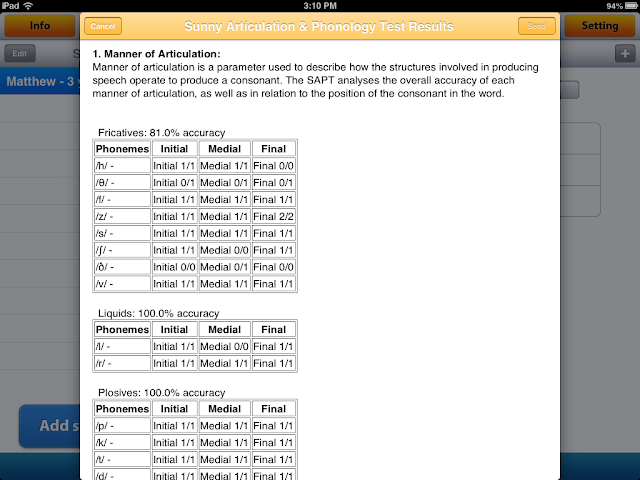
Position:  This calculates the percentage of correct productions by word position (initial, medial, and final)


Manner:  The student's accuracy by manner of articulation is displayed (fricatives, liquids, plosives, nasals, affricates, glides, and clusters)


Voicing:  Data for the student's accuracy with relation to voicing is displayed.


Words:  The complete word list for the screening is displayed, along with the correct/incorrect markings.


Place:  Accuracy in relation to place of articulation is displayed.


In the Full Evaluation mode, a sixth display is added:

Error:  Here you can view error patterns based on your assessment:


What to do with your results? 


Once you have completed your screening/evaluation and reviewed your results, you have several options that are available by tapping the "+" button:


Review Notes:  Here you can see all of the notes that you added while administering the screening/assessment

E-Mail Results:  This feature is AMAZING!  We've all seen apps that allow you to email data to yourself. Usually you get a table.  With SAPT, you actually get a fairly detailed REPORT!!  I only took shots of the first two screens, but the email will contain all of the information from each of the Results screens above, plus  a chart of developmental norms.  I don't love the norms chart, but you can always take it out of the report.   I put these screenshots as large as I could so you can get an idea:

email screen 1

email screen 2

Review Audio Recordings: If you chose to record a student's productions, you can go back and review them here:


Open in:  This is where you go to print (if you have AirPrint capabilities).  You can also open the report in other apps, depending on what you have installed on your iPad.  I was given the option to open in iBooks, Kindle, or Dropbox.

Open in TRC:  You have the option of opening the report in the Therapy Report Center app from Smarty Ears (Free in iTunes).  To do this, you must first have the student entered in the TRC.  Then you can export your data (from this app and many other Smarty Ears apps) and have all of your data in one convenient place!


What I Think

The Pros:
  • Screening and Full Evaluation in one app makes the SAPT very versatile
  • Administration is quick and easy (not to mention motivating for the students)!
  • Real-life photos are used.
  • The comprehensive breakdown of results by place, manner, voicing, word position, and error pattern.  This allows a treating therapist to analyze patterns and determine therapy targets very quickly!
  • The ability to record and save productions.  
  • The ability to tap and hear a modeled production when a student doesn't know a word.
  • Compatibility with the Therapy Report Center.  
What I'd love to see in the future:
  • I know this is dreaming big, but I would LOVE, LOVE, LOVE to see the SAPT standardized!  The app already gives you a raw score, but that doesn't take into account age/developmental expectations.     Imagine if it also provided standard scores and percentile ranks!
  • I'd also love to see the option of turning off the modeled productions that can be heard by tapping the stimulus picture.  I administered this test to my son right before his nap time.  He found it absolutely hysterical to tap the photo over and over and over and over and NOT say the words himself.  

The Bottom Line:

Oh! My! Gosh! This app is incredible!  Talk about a comprehensive way to analyze a student's articulation skills!  I love that, in the full evaluation mode, you can qualify incorrect responses.  This is a huge plus in relation to other articulation screening apps that I have tried.  The app isn't standardized, which means I can administer to students to determine targets, monitor progress, and collect data for progress reports without obtaining consent to test (a requirement in my district for administration of standardized testing).  This app is a great alternative and definitely a bargain in comparison to the traditional articulation and phonology tests!  

Think you can use the SAPT in your speech room?  Mary from Smarty Ears was kind enough to provide me with a code for a giveaway as well!  Enter using the Rafflecopter below!


Disclaimer:  Although Smarty Ears was kind enough to provide a code for this app review, and another for the giveaway, the opinions expressed in this review are mine alone.  


Related Posts Plugin for WordPress, Blogger...