Showing posts with label apps. Show all posts

Monday, October 28, 2013

Love it & List It Linky: Language Apps

I'm linking up for another fun "Love it and List it! Linky" hosted by Jenna at Speech Room News!  (See Jenna's original post HERE.)


This month's topic is Language Apps!  Here are my favorites (in no particular order):


  1. Speech With Milo Interactive Storybook (Doonan Speech Therapy):  I love this app for many reasons.  Basically, it's great for my preschool kiddos.  They can listen to the story, interact with the pages, and record themselves retelling the events on the page.  Plus, it's a bargain at only $1.99!
  2. Language Adventures (Smarty Ears, $14.99):  This app/board game can be used to target a variety of objectives and is a ton of fun for the kids!
  3. Rainbow Sentences (Mobile Education Store, $7.99):  This is a great app for working on syntax, expanding utterances, and so much more! I wrote a full review on this app that you can read HERE.
  4. Syntax Workout (Virtual Speech Center, $16.99):  I have a group of students who will do just about anything for a few minutes of "reward" with this app!  They don't mind "working" so that they can work some more with the app!  What's not to love about that?  This is another app I've reviewed in the past, check it out HERE.
  5. Cookie Doodle (Shoe the Goose, $0.99):  OK, this is technically NOT a language app...but the language potential is endless! Follow the directions of the recipe, sequence the steps, decorate and describe a cookie.  There are so many things you can do with this app and the kids just love it!

And there you have my top 5 language apps!  What are yours?


Monday, October 14, 2013

App Review: Fun with R {GIVEAWAY and a FREEBIE}

Today I'm going to be sharing Fun with "R" by the Virtual Speech Center.  Oh that dreaded /r/!  We've all had kids who struggle with that sound, right?  I'm guessing this app will make them a little more motivated in their sessions!


Under the Info tab, there is a video tutorial that you can view to learn how to use the app. You can also watch the tutorial here:


Many times I skip over telling you about the settings of an app because they are generally self-explanatory.  There is one really cool setting in Fun with R that I want to tell you about....Custom Words!  My absolute favorite feature of this app is that you can add your own words!  This is especially cool if there is an /r/ word that is particularly meaningful to a child (sibling name, teacher's name, etc.).  You can add a photo from your  camera roll and record models for word, phrase, and sentence levels:


There are three different activities from which to choose (more on those in a minute).  You can select your students and then their target(s).  As you can see, there are 15 different /r/ contexts:


Under the boxes, you can Edit Words (another great feature!).  From here you can deselect words:


Here's a quick explanation of why I love this feature:  I live in Massachusetts.  I "pahk the cah in Hahvid yahd."  I kid you not, I've gotten emails from people who wonder whether or not SLPs in Massachusetts actually work on /r/.  My answer:  yes, but not all /r/'s.  You can tell the difference between a dialectical difference and a true /r/ distortion.  We work on the distortions (typically "aw"), but not the dialectical differences (typically "eh" or "ah").  Does that make sense?  On to the dialectical differences...If you look at the "air" word list on this app, there are many words included that people in Massachusetts would pronounce differently (e.g., cherries would be "Ch-EH-Reez" not "Chair-eez").  Modifying the word lists can allow for correction of these differences!

Flashcards:
The first activity listed in Fun with R is "Flashcards."  As you might expect, you can scroll through images of words in this activity.  You can also hear the prerecorded model, record a child's response, and score responses as correct, incorrect, or approximate/assisted.  In this mode, you can easily switch between word positions and complexity level (word, phrase, sentence).  This mode is great for initial teaching of a sound.  You can get a lot of trials in and have students judge their own productions.

Here's "run" at the word level...


...at the phrase level...


...and at the sentence level:


Memory Game:
Most articulation apps have this game included.  It really is the perfect game for articulation because students practice 2 words per turn whether they get a match or not!  The app chooses six words from the list, for a total of 12 cards.


When a card is selected, the image pops up large for you to record the child's response:


When a student makes a match, the cards stay turned over on the screen rather than disappear (see below).  This allows you to continue to practice words even after they have been matched.  You can continue to record and play back responses in this game and toggle between word positions and complexity levels.  Note:  If you do change word positions, the pictures will change.


Bingo:
When you start a Bingo game, you are given a card with all the pictures showing.  This is great for practicing all of the words before you even begin the game.  A "call" word is shown on the right of the screen and the student needs to tap the corresponding image on their "card" if they have one.


When you "cover" an image, the image pops up larger so that you can collect data on the student's productions:


In addition, as you make matches, your pictures are covered like so:


I think the best thing about using articulation apps in therapy is that you always get a report at the end of your sessions.  We all need to collect data and apps are great for doing that on the spot with little effort on your part!  Fun with R will store your reports and you can view by data or by goal target.  I can't think of an easier way to document progress!


And there you have Fun with R!  Here are my thoughts...

Pros:

  • Ability to add custom words! Great for making an app more meaningful and motivating for students!
  • Ability to change/modify word lists (great when working in specific regions of the country).
  • Built in data collection.
  • Use of real photos
Changes I would make in an update:

  • I always try to think of what changes I would make to any app I review.  My initial thought with this one is that I would make the images disappear when a student makes a match in Memory.  Then I decided that VSC got it right by keeping them there....more practice!!!  I guess I would like to see an option of keeping them or removing them as some of our kids can get visually overstimulated
Bottom Line:
Fun with R is a great app for targeting that stubborn /r/ sound!  I love the customization that is available - being able to add your own words and to modify word lists.  If you find yourself frequently working on /r/, this is a must have app!  Fun with R currently sells for $19.99 in the App Store.


BONUS:
I created this quick screen to determine which contexts a child needs to focus on.  Simply have the students repeat the words and target those that they are having difficulty producing accurately.  You can download this freebie HERE.  

Enter to win a copy of Fun with R using the Rafflecopter below!


Disclaimer:  Virtual Speech Center provided a copy of this app for me to review, plus one to give away.  However, the opinions expressed are mine alone.


Monday, September 16, 2013

App Review: School of Multi-Step Directions


Today I will be sharing another fun app by the Virtual Speech Center - The School of Multi-Step Directions! I'm guessing that all SLPs everywhere have at least ONE student working on following directions. Am I right? Typically I work on single step directions (and even 2-step directions) in the context of other therapy activities (craftivities, games, etc.). When it comes to following 3+ step directions, however, I find that I really need to target these skills on their own. Why? Because students who have difficulty with complex directions really need to concentrate to be able to hear all of the steps, remember all of the steps, and execute the directive. The School of Multi-Step Directions is perfect for these students!

I want to point out that from this home screen, you can view your reports (data from previous sessions), modify the settings, and view a list of other apps by the Virtual Speech Center.  Under the "info" tab, you are able to watch a video tutorial.  Whenever I get a new app, I typically jump right in and get started, but I do recommend that you watch the tutorial (more on that later). If you want to see the app in action, here's the Video Tutorial from Vimeo (the same as in the app):

School of Multi-Step Directions from Virtual Speech Center on Vimeo.

When you're ready to begin, tap the Start button and enter a student.  You will have three options from which to choose:  English, Math, and Chemistry.


English:


In the "English" section, you have a choice of multiple targets. They are:

Two Step Directions:

  • Level 1:  2-step directions with pictures
  • Level 2:  2-step directions with letters
  • Level 3:  2-step directions with words
  • Level 4:  2-step directions with letters and size or color concept
  • Level 5:  2-step directions with letters and first or last concept
Three Step Directions:
  • Level 1:  3-step directions with pictures
  • Level 2:  3-step directions with letters
  • Level 3:  3-step directions with words
  • Level 4:  3-step directions with letters and size or color concept
  • Level 5:  3-step directions with letters and first or last concept
Four Step Directions:
  • Level 1:  4-step directions with pictures
  • Level 2:  4-step directions with letters
  • Level 3:  4-step directions with words
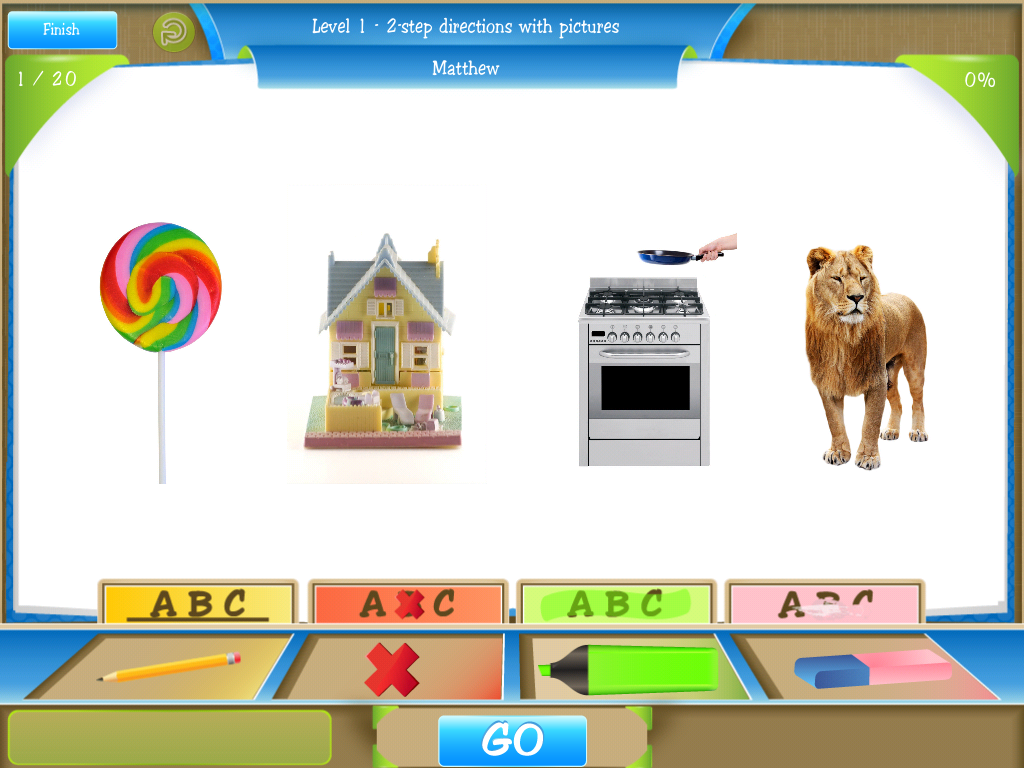
Here's an example of a 2-step direction with pictures:


Students may be asked to touch, underline, cross out, highlight, or erase a picture (e.g., "Touch the house and cross out the lion").  I'll be honest here...I jumped right in and started playing and couldn't figure out how to underline, highlight, cross out, etc.  I figured out that each tool corresponded to an action, but it took me a few tries to figure out that you have to drag the tool and hold it over the picture for a few seconds!  Also I want to note that you need to touch "Go" once you've completed all the directions in order to move on to the next item.

Here's an example of directions with letters and color or size concept:

"Underline the green R and highlight the yellow E"
Math:

Just like "English," in Math, there are multiple targets:

Two Step Directions:

  • Level 1:  2-step directions with shapes
  • Level 2:  2-step directions with numbers
  • Level 3:  2-step directions with shapes and size or color concept
  • Level 4:  2-step directions with numbers and even or odd concept
  • Level 5:  2-step directions with numbers and smaller or bigger concept
Three Step Directions:
  • Level 1:  3-step directions with shapes
  • Level 2:  3-step directions with numbers
  • Level 3:  3-step directions with shapes and size or color concept
Four Step Directions:
  • Level 1:  4-step directions with shapes
  • Level 2:  4-step directions with numbers

Here's an example of 2-step directions with shapes:

"Erase the circle and touch the square"
And here's an example of 2-step conditional directions with numbers and even or odd concepts:

"If 11 is even, cross out the 6 and underline the 7.  If not, erase the 9 and touch the 3"
Chemistry:

In this last "class," you can target:

Two Step Directions:

  • Level 1: 2-step directions with one element
  • Level 2:  2-step directions with size or color concept
  • Level 3:  2-step directions with color and first or last concept
Three Step Directions:
  • Level 1: 3-step directions with one element
  • Level 2:  3-step directions with size or color concept
  • Level 3:  3-step directions with color and first or last concept
Four Step Directions:
  • Level 1:  4-step directions with one element
Notice that, in chemistry, there are different tools along the bottom.  They stand for: set temperature to cold, set temperature to hot, mix, and shake.  There are also icons on the shelf behind the table.  You may be asked to add items from this shelf (e.g., "add coloring dye," "add salt," or "add ice cube.") 

Here's a sample of a 2-step direction with size or color concept:

"Add yellow soap to the small flask and touch the big flask."

And an example of a three step directive with color and first or last concept:

"Add water to the last red flask, mix the first green flask, and touch the first blue flask."

Built-in Reinforcement:

As with most of the apps from Virtual Speech Center, School of Multi-Step Directions comes with built in reinforcement.  The default setting is to provide reinforcement after 5 correct items, but you can increase or decrease as desired.  The reinforcement is a "Pong" game that is sort of a cross between ping pong and air hockey.  Needless to say, the kids love it!


Finally, with all apps by Virtual Speech Center, you can view reports of data collected from each session from the home page.  You can view data by activity or by date.  This is great for monitoring progress over time!


Some thoughts:

I would advise that you pre-teach some of the vocabulary for Chemistry class if you're using this app with early elementary students.  They may not know words like flask or beaker.  I would also recommend pre-teaching the tools and what they do (not just for Chemistry, but in each "class").

Personally, I found it difficult to remember some of the more complex directions!  (Good thing there's a repeat button for directions!) However, if you find that they are "too easy" for you or your clients, or you want to provide distractions, you can go to settings and add in background noise!

Here's what you should take away:

Pros:

  • This app is very versatile.  You can use it not only for school aged clients, but for adults as well.
  • There are multiple levels of complexity.
  • There are three different "classes," meaning you can use the app over multiple sessions and not be dong the same thing each time!
  • There is a repeat button if your student (or you, for that matter) doesn't remember the direction.
  • Data collection is always a plus
Cons:
  • Some of the kids had difficulty holding the tool over the targets long enough to "mark" it correctly. Also, there were a few times that I had my finger directly over the target, but a portion of the tool was more to the left.  This cause the app to "mark" the picture to the left of my target.

The Bottom Line:
Multi-step directions are often difficult to target in new, motivating ways during therapy sessions.  Virtual Speech Center made this goal so easy to target and  in a fun, challenging, yet motivating way! The School of Multi-Step Directions is very versatile and can be used with students through adults.  This app sells for $18.99 in the App Store.

What are your favorite ways to target following directions?

Monday, September 9, 2013

App Review: Basic Concepts Skills Screener

Today is the first day of school for preschool and kindergarten in my district (the older grades start a week earlier than the little ones).  I'm excited to see the little faces!  If you don't know, I work primarily with the little guys - preschool and kindergarten.  At that age, so much of what is worked on in early childhood classrooms is also targeted in speech and language therapy.  I so frequently work on comprehension and use of basic concepts.  Because of that, I was so excited to check out Basic Concepts Skills Screener (BCSS) by Smarty Ears Apps!

This app is designed for single player assessment and has two options - the Full Screening or the Quick Screening. The full screening consists of 79 questions and according to the Smarty Ears website, takes 10-15 minutes to administer. The quick screening has 30 questions and is estimated to take approximately 5 minutes.  I'm planning on use the quick screening as part of my baseline data collection for this year.

As with the other Smarty Ears apps, this one is really easy to navigate! When you first open the app, you need to choose a language.  You can use BCSS in English and Portuguese.  (FUN FACT:  My little corner of the world has a very large Portuguese community and many of the students in my district speak both English and Portuguese!).


Under the "Info" tab, you can view a 20-page manual for the BCSS, watch a Video Tutorial, and learn more about the app and Smarty Ears.


Tap the "Add Student" button and enter the child's Name and Date of Birth:


I administered the Screener to my son (don't judge, you know you've tested/screened your own children before!)  Next you choose the full screening or the quick screening.  In the app description, it's estimated that the full screening takes 10-15 minutes and the quick screening takes about 5 minutes.  I opted to go for the full screening.  My son has good attention, is generally cooperative, and has no speech or language delays.  It did take us closer to 20 minutes and he did need encouragement to keep going.  I wanted to tell you this because, if it took him extra time to finish and he needed breaks/encouragement, your language delayed preschoolers might need the same (or even additional) modifications.


During the screening, the student is shown four pictures and asked to touch one based on a description (e.g., "Touch the balloon that is ABOVE the house"):


Here are a few other examples:


In the upper left hand corner of the screen is a "Notes" tab.  You can click this at any point and add notes for your session:


When you are finished, you can see a list of screens that have been created by student:


You can quickly determine progress by looking at the Raw Scores reported, or you can view a full report of your session.  The report includes a description of the BCSS, the child's number of correct responses, number of items attempted, and overall accuracy level:


 It goes on to list the concepts that were answered correctly and incorrectly as well as those that were skipped.  Next is a breakdown of the student's performance by concept type (e.g., comparative, spatial, temporal, etc.):


There is also a table that depicts the student's mastery of concepts by age level:


And a color coded visual of concepts depicting types that are achieved, emerging, not achieved, and not tested:


And there you have BCSS!  I love screening apps because they're a great way to collect data on your students!  Data is one of the least fun, yet most necessary aspects of our profession.  Many times, the iPad is just motivating enough to get kids to participate in baseline data collection and data collection for progress monitoring.  Working in preschool, I often get students with objectives for following directions and comprehending concepts.  This will be a great way for me to track progress this year!

BCSS can be found in the App Store.  It sells for $14.99.

Do you target basic concepts in your therapy sessions?


Disclaimer:  Smarty Ears provided a copy of BCSS for the purposes of this review. The opinions expressed are mine alone.


Monday, July 29, 2013

App Review: Reading Aphasia

The content and variety of apps out there never ceases to amaze me!  Here's another fabulous app from the Virtual Speech Center that's geared toward adults with Aphasia, but really can be used with any client who struggles with reading comprehension.  Reading Aphasia was created by a certified speech and language pathologist.  It contains over 2,000 stimuli that are organized into 12 semantic categories to target reading comprehension at the word, phrase, and sentence levels.


From the main screen, you can tap Info to see how to use the app and to view a description of the app.  


You can also modify the Settings from the main screen.  Settings include user alternate count, automatic paging, random paging, and correct/incorrect sound clips.


When you're ready to begin tap Start and you will be prompted to Add and/or select students...


...and then select activities for each student.


Activities included in Reading Aphasia are:

Words:

  • Picture-Word Matching:  Students are shown a picture and they must select the matching word.
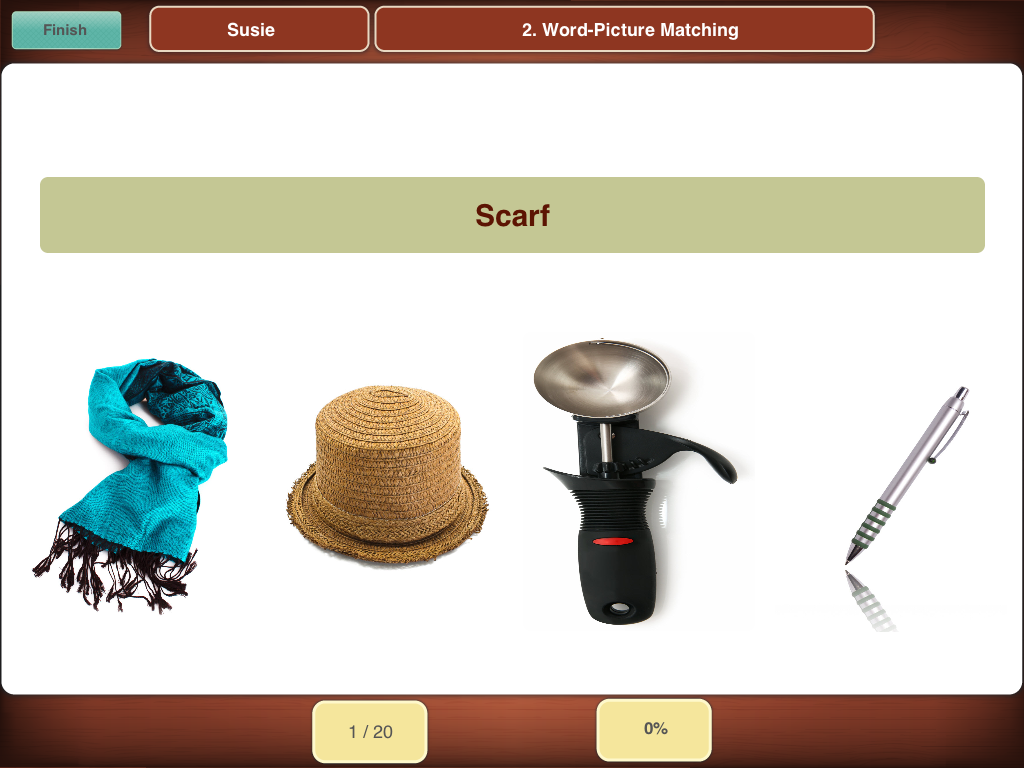
  • Word-Picture Matching:  Students are shown a word and they must select the matching picture.
  • Word-Word Matching:  Students are shown a word and they must select the word that is the same.
Phrases:
  • Picture-Phrase Matching:  Students are shown a picture and they must select the matching phrase.
  • Phrase-Picture Matching:  Students are shown a phrase and they must select the matching picture.
  • Phrase-Phrase Matching:  Students are shown a phrase and they must select the phrase that is the same.
Sentences:
  • Picture-Sentence Matching:  Students are shown a picture and they must select the matching sentence.
  • Sentence-Sentence Matching:  Students are shown a sentence and they must select the sentence that is the same.
  • Sentence Completion:  Students are given a sentence with a missing component.  They must select the word(s) that best complete the sentence.

Now, here is an example from each activity:


Words:

Picture-Word Matching

Word-Picture Matching


Word-Word Matching

Phrases:

Picture-Phrase Matching

Phrase-Picture Matching

Phrase-Phrase Matching

Sentences:

Picture-Sentence Matching

Sentence-Sentence Matching

Sentence Completion

Reports:
After you use the app, you can view your reports/data from each session by Activity or by Date:


Simply tap and you'll be able to see data by percentage:


And there you have Reading Aphasia!  Here are some of my thoughts:

Pros:

  • As with Comprehension Aphasia, Reading Aphasia can be used for more than just adults with aphasia.  This app can be used with pretty much any client who has reading difficulties.  You could also modify the app by reading the words for clients and having them select the appropriate responses.
  • The multiple levels.  Because of the levels, this app can be used with a wide age group as well.
  • The use of photographs is especially important when you are using this app with a client who has aphasia.  Photographic representation is less cognitively complex than a line drawing.  Because of this, the cognitive demand on the client is decreased, allowing them to focus on the reading target.
  • Data collection.  In-app data collection allows you to monitor progress over time.


Changes I would like to see in an update:

  • There was only one thing I could think of here.  I came across the item below.  I would refer to that picture as "glove" rather than "mitten" and most of my students would do the same.


The bottom line:
Reading Aphasia is a versatile app that can be used with a wide variety of age groups and disabilities.  You can use this app to target reading abilities, receptive language, vocabulary, and grammar/sentence construction.  This app is reasonably priced at $9.99 in the App Store.

Do you have this app?  What objectives are you using it to target?


Related Posts Plugin for WordPress, Blogger...