Showing posts with label Smarty Ears. Show all posts

Monday, October 28, 2013

Love it & List It Linky: Language Apps

I'm linking up for another fun "Love it and List it! Linky" hosted by Jenna at Speech Room News!  (See Jenna's original post HERE.)


This month's topic is Language Apps!  Here are my favorites (in no particular order):


  1. Speech With Milo Interactive Storybook (Doonan Speech Therapy):  I love this app for many reasons.  Basically, it's great for my preschool kiddos.  They can listen to the story, interact with the pages, and record themselves retelling the events on the page.  Plus, it's a bargain at only $1.99!
  2. Language Adventures (Smarty Ears, $14.99):  This app/board game can be used to target a variety of objectives and is a ton of fun for the kids!
  3. Rainbow Sentences (Mobile Education Store, $7.99):  This is a great app for working on syntax, expanding utterances, and so much more! I wrote a full review on this app that you can read HERE.
  4. Syntax Workout (Virtual Speech Center, $16.99):  I have a group of students who will do just about anything for a few minutes of "reward" with this app!  They don't mind "working" so that they can work some more with the app!  What's not to love about that?  This is another app I've reviewed in the past, check it out HERE.
  5. Cookie Doodle (Shoe the Goose, $0.99):  OK, this is technically NOT a language app...but the language potential is endless! Follow the directions of the recipe, sequence the steps, decorate and describe a cookie.  There are so many things you can do with this app and the kids just love it!

And there you have my top 5 language apps!  What are yours?


Monday, September 9, 2013

App Review: Basic Concepts Skills Screener

Today is the first day of school for preschool and kindergarten in my district (the older grades start a week earlier than the little ones).  I'm excited to see the little faces!  If you don't know, I work primarily with the little guys - preschool and kindergarten.  At that age, so much of what is worked on in early childhood classrooms is also targeted in speech and language therapy.  I so frequently work on comprehension and use of basic concepts.  Because of that, I was so excited to check out Basic Concepts Skills Screener (BCSS) by Smarty Ears Apps!

This app is designed for single player assessment and has two options - the Full Screening or the Quick Screening. The full screening consists of 79 questions and according to the Smarty Ears website, takes 10-15 minutes to administer. The quick screening has 30 questions and is estimated to take approximately 5 minutes.  I'm planning on use the quick screening as part of my baseline data collection for this year.

As with the other Smarty Ears apps, this one is really easy to navigate! When you first open the app, you need to choose a language.  You can use BCSS in English and Portuguese.  (FUN FACT:  My little corner of the world has a very large Portuguese community and many of the students in my district speak both English and Portuguese!).


Under the "Info" tab, you can view a 20-page manual for the BCSS, watch a Video Tutorial, and learn more about the app and Smarty Ears.


Tap the "Add Student" button and enter the child's Name and Date of Birth:


I administered the Screener to my son (don't judge, you know you've tested/screened your own children before!)  Next you choose the full screening or the quick screening.  In the app description, it's estimated that the full screening takes 10-15 minutes and the quick screening takes about 5 minutes.  I opted to go for the full screening.  My son has good attention, is generally cooperative, and has no speech or language delays.  It did take us closer to 20 minutes and he did need encouragement to keep going.  I wanted to tell you this because, if it took him extra time to finish and he needed breaks/encouragement, your language delayed preschoolers might need the same (or even additional) modifications.


During the screening, the student is shown four pictures and asked to touch one based on a description (e.g., "Touch the balloon that is ABOVE the house"):


Here are a few other examples:


In the upper left hand corner of the screen is a "Notes" tab.  You can click this at any point and add notes for your session:


When you are finished, you can see a list of screens that have been created by student:


You can quickly determine progress by looking at the Raw Scores reported, or you can view a full report of your session.  The report includes a description of the BCSS, the child's number of correct responses, number of items attempted, and overall accuracy level:


 It goes on to list the concepts that were answered correctly and incorrectly as well as those that were skipped.  Next is a breakdown of the student's performance by concept type (e.g., comparative, spatial, temporal, etc.):


There is also a table that depicts the student's mastery of concepts by age level:


And a color coded visual of concepts depicting types that are achieved, emerging, not achieved, and not tested:


And there you have BCSS!  I love screening apps because they're a great way to collect data on your students!  Data is one of the least fun, yet most necessary aspects of our profession.  Many times, the iPad is just motivating enough to get kids to participate in baseline data collection and data collection for progress monitoring.  Working in preschool, I often get students with objectives for following directions and comprehending concepts.  This will be a great way for me to track progress this year!

BCSS can be found in the App Store.  It sells for $14.99.

Do you target basic concepts in your therapy sessions?


Disclaimer:  Smarty Ears provided a copy of BCSS for the purposes of this review. The opinions expressed are mine alone.


Monday, July 22, 2013

App Review & Giveaway: Describe it to Me

I'm so excited to bring you some info on the latest app by Smarty Ears Apps - Describe It To Me.  This app, like all of those developed by Smarty Ears, was designed by a certified speech-language pathologist. The coolest thing about this app is that it uses a game show format to build receptive and expressive language skills.  The app description states that Describe it To Me is "designed to help clients build a deeper understanding of everyday items."  But you can do so much more with this app than that! (More on that later.)


Getting Started:
Before we start, I wanted to share a few features that are available from the home screen.  Support: This button allows you to watch a video tutorial on using the app, view a description of the app, backup/restore the app, and email Smarty Ears for support.  More Apps:  View more of the apps available from Smarty Ears.  Report Center:  This is where you can go to view the data from your Describe it to Me sessions.


When you're ready to begin, tap Play.  You will need to add a player to begin.  You can manually add a player or import players from Therapy Report Center. When you add a player, you can choose to import a photo (from the camera or photo roll) or use one of the many built-in avatars.  The screenshot below shows you an example of both an avatar and photo icon.


From this screen, you can also adjust the settings for the app.  You can choose what happens when the student is incorrect (buzz or remove the item), choose visual/auditory reinforcement, choose whether or not to display points, and choose whether or not to use a spinner.  From this screen, you can also customize the word list (below) by selecting/deselecting words (below). For example, if you are using with younger kids, you might want to keep the vocabulary more simple.


Using the App:
Once you have your players added/selected and your settings selected, you are ready to begin.  You can use this app with up to five players. The players will be displayed on the spinner.  The target word/object is displayed on the television screen and the question type is displayed above the screen.  You can change the target word by pressing the forward/reverse buttons on the side of the screen and switch from receptive/expressive targets by sliding the button to R/L.  Change students by tapping the avatar of the desired player.


Receptive:
In the receptive mode, the student is given questions about the object with four possible answers.  There are six questions for each item (located along the top of the TV screen).  These can be changed by sliding the indicator icon.  The questions are related to:

Category:


Function:


Parts:


Location:


Visuals:


Extra:


I used the same object for each question type so you could get an idea of the question asked.  The questions are generally the same for each object.


Expressive:
For the expressive component, the same six question types are present and the questions that are asked are the same as in the receptive component.  However, in expressive mode, the student must respond verbally.  You can score a student's responses by tapping Correct/Almost/Incorrect.


Reports:
When you're finished with your session, tap DONE.  As with most Smarty Ears apps, Describe it to Me has built in data collection and will generate reports based on your sessions.  You may view/email these reports, or export to Therapy Report Center.


Reinforcement:
Describe it to Me has a few different types of reinforcement.  First, do you remember the settings?  You could select Visual and/or Auditory Reinforcement.  The visual is shown below.  The auditory is a sound that occurs when the student gets the item correct.


In addition, Describe it to Me provides rewards whenever a child gets 10 correct answers in a row:


These rewards will be stored in the player profile of the app.


Homework:
Describe it to Me has built in homework sheets that you can email to a parent or email to yourself for printing.  We all know that carryover is essential and what better way to promote carryover than home practice!


Eliminate 1:


Circle 3:


And that's Describe it to Me!  Here's what I think:

The Pros:
  • I've often used a "Describing Hierarchy" in my therapy sessions that is somewhat similar to the question prompts in this app.  I've found using an approach like this to be helpful for students with word retrieval difficulties.
  • Receptive/Expressive components in the same app!  We all have mixed groups, right?  This app makes working with mixed groups easy!
  • The app description says that is was designed to be used to build a deeper understanding of everyday items.  It really can be used for so much more:  increasing vocabulary, answering wh- questions, use and comprehension of categories, use and comprehension of attributes, part/whole relationships, object functions, word retrieval, etc.
  • I don't have an EET, but have read up on it a bit.  This app looks like it focuses on similar concepts and can be used in conjunction with EET.
  • I love the built-in home practice sheets! They can easily be shared with teachers or parents for printing.
  • Built in reinforcement and data collection are always big pluses in my book.  Because of the reinforcement and fun game show format, kids may be more motivated to practice skills using the app than without it.

The Cons:
  • I've turned the spinner on.  I've turned the spinner off.  I cannot notice a difference either way.  
  • I would love to be able to record expressive responses.  With that said, I know that adding a recording feature would likely increase both the price and storage space of the app, so I can live without that feature.

The Bottom Line:
Describe it to Me is a great app that can be used to address so many language targets.  This app is fun and motivating for students, not to mention affordable.  Describe it to Me features similar concepts as the EET and is a great addition/companion to the EET.  I cannot wait to try this app with some of my students with word retrieval difficulties because I know it will make a difference!  As of this posting, Describe it to Me is on sale for $4.99 in the App Store.  The regular price of this app is $9.99.  Smarty Ears was kind enough to provide a copy for me to give away today.  To enter, use the Rafflecopter below.


Friday, June 21, 2013

App Review: Phono Learning Center


Hey everyone! Today I'm sharing another super-fun app from Smarty Ears! Phono Learning Center (PLC) is designed to help students who are working on sound production skills. This app is based upon Barbara Hodson's Cycles Approach and was designed for students who are highly unintelligible. The app is designed for use with individual students or groups of students. There are four fun activities to choose from as well!


When you open PLC, you see the menu screen above. If it's your first time, you might want to check out the "support" menu. Here you can read a brief paragraph describing the app, watch a video tutorial, contact Smarty Ears to report a problem, view more Smarty Ears apps, Backup/Restore, and view/share homework pages.


When you're ready to begin, you can start a "new session." Now you will enter your student(s) name(s) and target(s). 


If you can't read them, here is a list of the targets:

Primary Targets: (above)
  • Syllables 
  • Initial Consonants 
  • Final Consonants 
  • S Clusters 
  • Final S Clusters 
  • Posterior Contrasts 
  • Anterior Contrasts 
  • Liquids 

Secondary Targets: (below)
  • Voicing Contrasts 
  • Stridents 
  • Palatals 
  • Consonant Sequences 
  • Medial K 
  • Postvocalic R 

Advanced:
  • Complex Consonants 
  • Multisyllabic Words 
*Advanced targets for students 8 and older. For both secondary and advanced targets incorporate minimal pairs and increasing complexity.


Selecting some of the targets will require you to add more information...


You are able to modify some settings for each individual students. You can turn on/off Auditory Bombardment and select a level of complexity (Words, Phrases, Sentences). You can also add a picture for each player from the camera/photo roll, or select an avatar. There are a ton of avatars to choose from! (The green haired guy was, for whatever reason, a favorite of my male students!).


You can modify the game settings from the "add player" screen as well by tapping the gear button in the upper right hand corner. I think most of the settings (below) are self explanatory, but I would like to point out the "scoring style" options. With "Standard," you can mark a response using "Missed," "Almost," or "Got it." With "Level of Prompts," you can mark a student's response using "Prompted," "Imitated" or "Correct." 


Auditory Bombardment:
If you have this option selected, a student will begin the auditory bombardment activity, but only for individual sessions (this option automatically disables when using in a group). Several balloons float from the bottom to the top of the screen. Students can "pop" the balloons and, each time they do, hear one of their target words. 


Balloon:


In this game, a flash card appears on the left of the screen. The student says the word and drags the card to the balloon. With each card that is brought to the balloon, the balloon inflates a little bit more. Once "full," the balloon takes off! 


Matching:


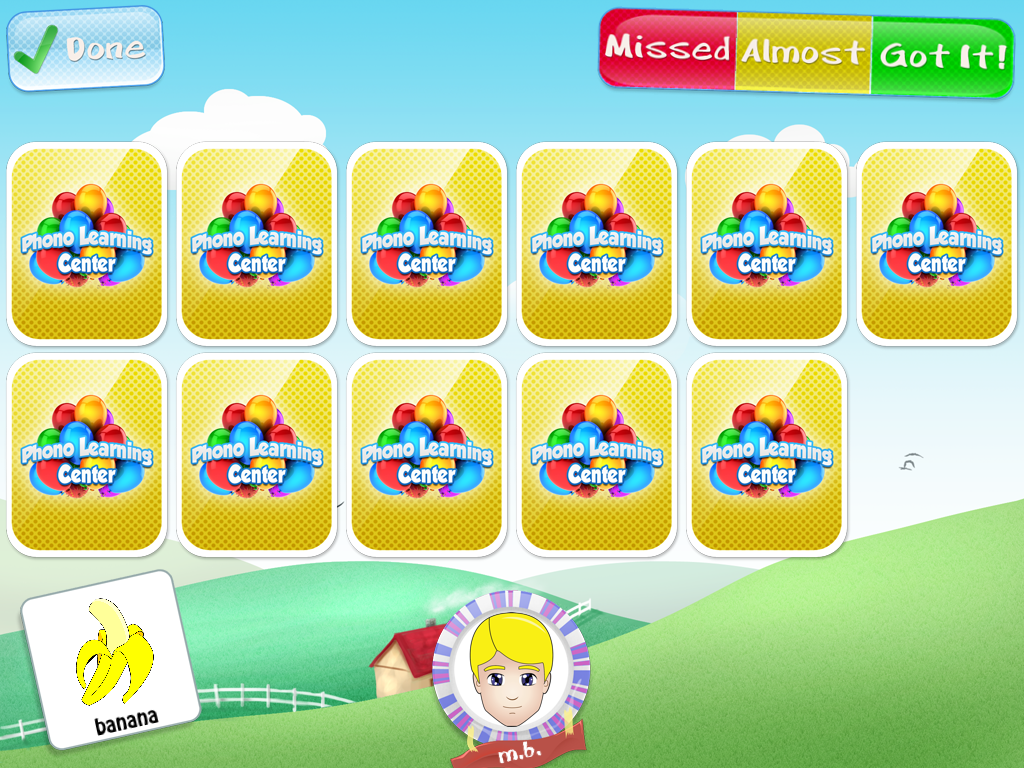
This activity is like a modified "memory" or "concentration" game. Basically, one card is turned over and the child can tap a card that is face-down to find a match. The nice thing about this game is that they can practice the word from each card as they turn them over, allowing for multiple practices. Also, for kids with reduced attention, it limits their focus to finding one card, not two.


Puzzle:


For this game, puzzle pieces with target words appear. Students say their target words and drag to the puzzle area. They do NOT have to line up the pieces to a specific spot in the puzzle frame. With each puzzle piece added, a portion of a picture appears. 


Basket Paper:


This game has been the favorite with all the kids (Matching has been a close second). Students say their word and tap the paper to crumple it. Then they have to flick it toward the basketball hoop. It is possible to miss the hoop in this game, so a few of my groups insisted on keeping score!


Other Features:


Like most of the apps from Smarty Ears, this app has built in capacity to generate reports for your sessions. This is great for monitoring progress over time. PLC is also compatible with Therapy Report Center (TRC), a free app that allows you to store reports from all compatible Smarty Ears apps!

Remember that "Support" icon on the main menu? There's an option there that allows you to generate homework pages! You can email these directly to parents or email to yourself for printing. 


The Pros:
  • This is the only app I'm aware of that targets phonology from the cycles framework, an evidence based approach to treating phonological disorders. 
  • Auditory bombardment - I have yet to see this in an app and it's vital to so many kids with articulation/phonology objectives! 
  • The options available for scoring responses. This app allows you to do more than just identify a response as correct/incorrect. You can also classify by level of prompts needed. 
  • You can use it in a group!!! 
  • The variety/duration of games included. These games play fairly quickly. If you are using this app in a group, you can have each child pick a game for the group or pick their own game. Each child is bound to have a favorite! 
  • Compatibility with TRC! I've said it before, I'll say it again...when it's time to write progress reports, it's so handy having all of your data in one spot! 
  • If you don't want to use the cycles approach, you can turn it off! 

Things I could change in an update:
  • When you finish a puzzle, the "Terminate Session/Switch Game" box appears very quickly and covers the puzzle. I would love it if the box came a little later, was a bit smaller, was moved to a corner...I'm not sure what the best thing to do with the box would be, but I do know that I would like to have a minute or two for the students to look at/describe the picture from the puzzle. 

The Bottom Line:
There are a lot of great articulation apps out there, but not as many that are really geared toward phonology. To the best of my knowlege, this is the only one that targets phonology from the cycles perspective. Phono Learning Center is another fantastic app from Smarty Ears! I love the versatility of this app. You can work on phonological processes or specific speech sounds, modify the way you score responses, and import all of your data into TRC. I also love the games as well. They're motivating and fun for students, and occasionally incite a little competition! 

Phono Learning Center sells for $24.99 in iTunes. PLC is currently on sale for the introductory price of $19.99 but not for long, so hurry up and grab it while it's still on sale!


Related Posts Plugin for WordPress, Blogger...