Showing posts with label following directions. Show all posts

Monday, September 16, 2013

App Review: School of Multi-Step Directions


Today I will be sharing another fun app by the Virtual Speech Center - The School of Multi-Step Directions! I'm guessing that all SLPs everywhere have at least ONE student working on following directions. Am I right? Typically I work on single step directions (and even 2-step directions) in the context of other therapy activities (craftivities, games, etc.). When it comes to following 3+ step directions, however, I find that I really need to target these skills on their own. Why? Because students who have difficulty with complex directions really need to concentrate to be able to hear all of the steps, remember all of the steps, and execute the directive. The School of Multi-Step Directions is perfect for these students!

I want to point out that from this home screen, you can view your reports (data from previous sessions), modify the settings, and view a list of other apps by the Virtual Speech Center.  Under the "info" tab, you are able to watch a video tutorial.  Whenever I get a new app, I typically jump right in and get started, but I do recommend that you watch the tutorial (more on that later). If you want to see the app in action, here's the Video Tutorial from Vimeo (the same as in the app):

School of Multi-Step Directions from Virtual Speech Center on Vimeo.

When you're ready to begin, tap the Start button and enter a student.  You will have three options from which to choose:  English, Math, and Chemistry.


English:


In the "English" section, you have a choice of multiple targets. They are:

Two Step Directions:

  • Level 1:  2-step directions with pictures
  • Level 2:  2-step directions with letters
  • Level 3:  2-step directions with words
  • Level 4:  2-step directions with letters and size or color concept
  • Level 5:  2-step directions with letters and first or last concept
Three Step Directions:
  • Level 1:  3-step directions with pictures
  • Level 2:  3-step directions with letters
  • Level 3:  3-step directions with words
  • Level 4:  3-step directions with letters and size or color concept
  • Level 5:  3-step directions with letters and first or last concept
Four Step Directions:
  • Level 1:  4-step directions with pictures
  • Level 2:  4-step directions with letters
  • Level 3:  4-step directions with words
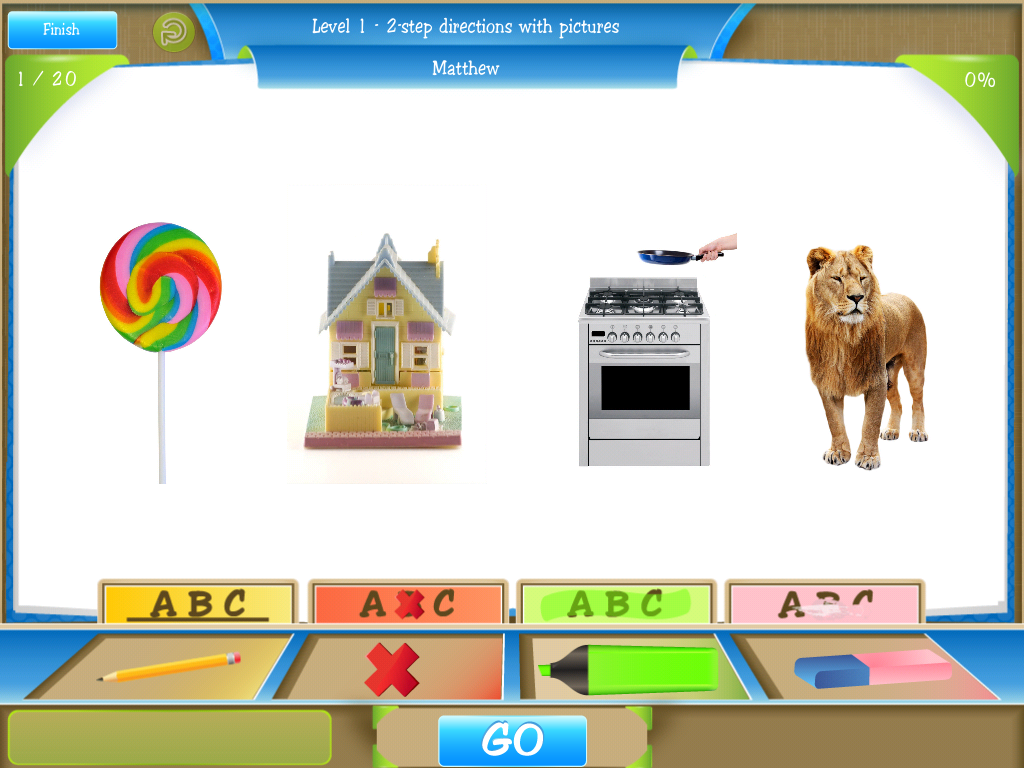
Here's an example of a 2-step direction with pictures:


Students may be asked to touch, underline, cross out, highlight, or erase a picture (e.g., "Touch the house and cross out the lion").  I'll be honest here...I jumped right in and started playing and couldn't figure out how to underline, highlight, cross out, etc.  I figured out that each tool corresponded to an action, but it took me a few tries to figure out that you have to drag the tool and hold it over the picture for a few seconds!  Also I want to note that you need to touch "Go" once you've completed all the directions in order to move on to the next item.

Here's an example of directions with letters and color or size concept:

"Underline the green R and highlight the yellow E"
Math:

Just like "English," in Math, there are multiple targets:

Two Step Directions:

  • Level 1:  2-step directions with shapes
  • Level 2:  2-step directions with numbers
  • Level 3:  2-step directions with shapes and size or color concept
  • Level 4:  2-step directions with numbers and even or odd concept
  • Level 5:  2-step directions with numbers and smaller or bigger concept
Three Step Directions:
  • Level 1:  3-step directions with shapes
  • Level 2:  3-step directions with numbers
  • Level 3:  3-step directions with shapes and size or color concept
Four Step Directions:
  • Level 1:  4-step directions with shapes
  • Level 2:  4-step directions with numbers

Here's an example of 2-step directions with shapes:

"Erase the circle and touch the square"
And here's an example of 2-step conditional directions with numbers and even or odd concepts:

"If 11 is even, cross out the 6 and underline the 7.  If not, erase the 9 and touch the 3"
Chemistry:

In this last "class," you can target:

Two Step Directions:

  • Level 1: 2-step directions with one element
  • Level 2:  2-step directions with size or color concept
  • Level 3:  2-step directions with color and first or last concept
Three Step Directions:
  • Level 1: 3-step directions with one element
  • Level 2:  3-step directions with size or color concept
  • Level 3:  3-step directions with color and first or last concept
Four Step Directions:
  • Level 1:  4-step directions with one element
Notice that, in chemistry, there are different tools along the bottom.  They stand for: set temperature to cold, set temperature to hot, mix, and shake.  There are also icons on the shelf behind the table.  You may be asked to add items from this shelf (e.g., "add coloring dye," "add salt," or "add ice cube.") 

Here's a sample of a 2-step direction with size or color concept:

"Add yellow soap to the small flask and touch the big flask."

And an example of a three step directive with color and first or last concept:

"Add water to the last red flask, mix the first green flask, and touch the first blue flask."

Built-in Reinforcement:

As with most of the apps from Virtual Speech Center, School of Multi-Step Directions comes with built in reinforcement.  The default setting is to provide reinforcement after 5 correct items, but you can increase or decrease as desired.  The reinforcement is a "Pong" game that is sort of a cross between ping pong and air hockey.  Needless to say, the kids love it!


Finally, with all apps by Virtual Speech Center, you can view reports of data collected from each session from the home page.  You can view data by activity or by date.  This is great for monitoring progress over time!


Some thoughts:

I would advise that you pre-teach some of the vocabulary for Chemistry class if you're using this app with early elementary students.  They may not know words like flask or beaker.  I would also recommend pre-teaching the tools and what they do (not just for Chemistry, but in each "class").

Personally, I found it difficult to remember some of the more complex directions!  (Good thing there's a repeat button for directions!) However, if you find that they are "too easy" for you or your clients, or you want to provide distractions, you can go to settings and add in background noise!

Here's what you should take away:

Pros:

  • This app is very versatile.  You can use it not only for school aged clients, but for adults as well.
  • There are multiple levels of complexity.
  • There are three different "classes," meaning you can use the app over multiple sessions and not be dong the same thing each time!
  • There is a repeat button if your student (or you, for that matter) doesn't remember the direction.
  • Data collection is always a plus
Cons:
  • Some of the kids had difficulty holding the tool over the targets long enough to "mark" it correctly. Also, there were a few times that I had my finger directly over the target, but a portion of the tool was more to the left.  This cause the app to "mark" the picture to the left of my target.

The Bottom Line:
Multi-step directions are often difficult to target in new, motivating ways during therapy sessions.  Virtual Speech Center made this goal so easy to target and  in a fun, challenging, yet motivating way! The School of Multi-Step Directions is very versatile and can be used with students through adults.  This app sells for $18.99 in the App Store.

What are your favorite ways to target following directions?

Tuesday, August 6, 2013

Letterboxing, Part 2 (Incorporating into Speech/Language Therapy)

Warning:  This post will make a lot more sense if you have already read my post Letterboxing, Part 1. :)

Yesterday I shared a little bit about Letterboxing with you.  As soon as I heard of this activity, I knew it could have amazing applications in speech and language therapy sessions.  However, most of us can't just take our kids on scavenger hunts all over town...I mean, that would likely take WAY more than the standard 30 minute speech session would allow!  So, how can you incorporate Letterboxing into your therapy sessions?  Easily!  Instead of having your students Find Letterboxes, have them Plant one!


Think about it...every Letterbox out there was put in its location by someone.  Each of the clues on the site were written by someone!  Why not you and your students?  Public schools are, by definition, on public property.  You could plant a Letterbox without even leaving school grounds!  Also, have you checked out some of the clues?  They range from really simple (Go to X location. Look for Y landmark. Find Letterbox) to complex.  Some include a history of the location, some are elaborate fictional stories about the location, and some take you to on (what feels like) an expedition!

Planting a Letterbox in Speech:

  • First of all, I recommend this activity for grades 3 and up.  However, once you have planted the letterbox, you can go "find it" with some of your younger groups.  
  • You may also wish to get permission from your principal. Once you get the OK...
  • Explain Letterboxing to your kids.  You could even stage a mock indoor letterbox for your students to find so they get the idea. 
  • Take your sessions outside and decide on a location.  You can even do this with multiple different groups and then have the students vote on their favorite location.
  • Create your box.  You can view the Letterboxing website for some information on planting clues. I recommend a box that you know will be air/water tight and putting the items in a Ziploc bag within the box.  
  • Decide how much information you want your students to include in the clues.  (This may vary between groups.)  Some ideas:  a brief history of the school, students's favorite things about the school, a short bio on the person for whom the school is named, etc.  Help the students research and start writing the information you decided to include, as well as the clues to get to the box location.
  • Do a walk-through of the clues with the students.  Follow the directions as literally as possible.  This will help the students see which directions may need to be clarified.
  • Once your clues are completed, plant the box and upload your information to the Letterboxing website.  You may want to check your box once in a while to see whether or not you've had visitors.
  • Use the clues with your other groups, especially those that are working on auditory comprehension and following directions!  


You can target so many goals by planting a Letterbox (expressive language, receptive language, giving directions, following directions, written language, carryover of any skill, etc., etc., etc.)!  Do you think you could plant a Letterbox with your students?

Wednesday, July 31, 2013

Book of the Week: "Goodnight, Goodnight Construction Site"

This post contains affiliate links to Amazon.com for your convenience.

(Image Source:  Amazon.com)

This week's book of the week is "Goodnight, Goodnight Construction Site" and was written by Sherri Duskey Rinker and Tom Lichtenheld.  This is one of my favorite books that I read, not just in my therapy room, but in my home!


I wrote this post for Playing With Words 365 while Katie prepares for Baby #3.  Katie was a big inspiration to me in starting my own blog and she has proven to be a wealth of information, not only regarding speech and language, but on blogging as well!

To continue reading (and to download the freebie), head on over to Playing with Words 365!


Wednesday, July 17, 2013

Don't Throw it Away! Newspapers

A few years ago, I was working solely in the preschool of a brand new district after working 5 years in early intervention and three years in another preschool program.  Because I was lowest on the seniority pole, I was  a "floater" (meaning I would help to cover if another SLP had to go on an extended leave).  Then I got a phone call that terrified me.  I was going to "float" over to another school to absorb part of another SLP's caseload while she was out on medical leave!  Her caseload consisted of preschool through grade five.  FIVE?!?  YIKES!  After spending so much time with little kids, I really had no idea what I was going to do with the big kids (grades 3-5).  Yes, she left me some ideas, but now that I had kids who could read and write, I wanted to do something really creative!  So, I grabbed a newspaper:

(I've been planning this post for a while now - check out the date!)

During my first session (after the getting-to-know-you stuff), I took out a newspaper.  We talked about the parts (title, headlines, stories captions) and the sections (local, sports, classifieds, etc.).  Then we talked about why a story might be on the front page versus the middle of the second section...why some stories had pictures and others didn't...why people put ads in the classified...and why there are other advertisements in the paper.

In subsequent sessions, we:

  • read articles and answered wh- questions
  • read 2 out of 3 panels of a comic strip and worked on predicting
  • read articles and brainstormed appropriate headlines
  • looked at pictures of people and discussed their emotions
  • and had a newspaper scavenger hunt!

Today I'll be sharing the Newspaper Scavenger Hunt with you!  This was probably the favorite activity for the kids.  I split them into teams and had them work together (great way to incorporate executive functioning skills!) to find different categories of words within the newspaper.


I told students what they would be looking for before they were able to pick a section of the newspaper. I also gave them a few minutes to come up with a strategy before they began. They searched for proper nouns, common nouns, contractions, adjectives, verbs, compound words, a month of the year, and numbers (you may choose to do numerals or number words).  You may wish to pre-teach certain ideas early on in your newspaper unit.  For example, while checking out the sports page, you may mention that football, baseball, basketball are compound words, or you may draw attention to the location of the date within the newspaper.

The kids all got one of these sheets plus pencils.  They were instructed to circle the words they found in the newspaper (so I could make sure they were really finding the words) and to copy the words onto their worksheet.  I have to say, this activity drew out their competitive sides!

One more thing I want to mention, I decided early on that we would write a newspaper for the SLP who was out so that she could know everything important that happened while she was out.  The kids worked together to decide a name for the newspaper.  Each week, I asked them to tell me what happened during the week.  Toward the end, we picked a few topics about which we would write articles.  Once we had topics, we brainstormed key points that we would make about the topics, created sentences for the points, and put them in a logical order.  Then they came up with titles for their articles.  I even brought in my camera so they could include photos.

The kids wrote about picture day and interviewed the school secretary to find out the date and the name of the company.  One of the students was planning on moving the following week, so they interviewed him about where he was moving and how he felt about the move.  They wrote about MCAS (our state wide achievement testing) and a field trip.  Here's one of their articles:

Field Trip
The third and fourth grade went on a field trip to the Zeiterion Theater on March 18th. We went there on a bus. There were other schools at the Zeiterion. We saw a friend who moved to another school and her name is Lakeira. We saw an orchestra playing the violin, drums, strings, flute, tuba, clarinet, and harp. Kaidyn raised his hand to go on the stage and got picked. He played a trumpet and it didn’t work for him because he didn’t do it right. It made a funny noise. We came back from the Zeiterion in time for lunch.

Not bad, right?!?  If you like the idea of using the newspaper in therapy, you'll want to check out Speech Room News for Jenna's Newspaper Companion.  I had the chance to preview the companion and it is awesome!  Now I know exactly what to do if I ever get called to "float" again!  :)

You can download this activity HERE.  Do you use the newspaper in your therapy sessions?  What are your favorite activities?

Monday, July 15, 2013

App Review: Comprehension Aphasia

I had the pleasure of trying out Comprehension Aphasia by the Virtual Speech Center.  Despite its name, this app is not just for adults, but can be used with children who have comprehension issues as well!


You can see the home screen of Comprehension Aphasia above. If you tap the info button, you will see a description of the app as well as how it is used:


According to the description, Comprehension Aphasia "focuses on auditory comprehension of increasingly longer and complex yes-no questions and directions with the ability to turn on background noise."  The app can be used with clients who exhibit aphasia, cognitive deficits, decreased attention, Central Auditory Processing Disorder (CAPD), receptive language impairments, and autism.  In my opinion, this app can be used with any client who needs to strengthen their ability to listen to and comprehend spoken language (specifically questions and directions).

You can tap More Apps to see a list of apps by Virtual Speech Center, along with a description of each app.  You can also modify the Settings for the app from the home screen:


Settings include:  Turning on/off audio, automatically moving to the next item when a response is given, randomization of items, turning on/off background noise (and adjusting both the type of noise and the volume), and modifying the sounds heard for correct and incorrect responses.

Using the App:

When you tap Start from the home screen, you will be prompted to add/select students.  You can use this app with individual clients or in groups.


Once you have your student(s) selected, you will be prompted to select activities.  You may select multiple activities for each student playing, then tap Next to begin.


 The activities in this app include:

1.  Yes/No Questions:

  • Yes-No Questions with pictures (Nouns, Function of Objects, Verbs, or Adjectives)
  • Concrete Yes-No Questions without pictures
  • Abstract Yes-No Questions without pictures

While targeting yes/no questions with pictures, the client is given a verbal question (written cues for stimulus items are not utilized in this app) and shown an image.  A question is posed regarding the image.  Examples include:  "Is this an apple?" (Nouns), "Do we use a garden hose to water?" (Function of Objects), "Is she reading a book?" (Verbs), and "Is this rose long?" (Adjectives).

"Is this an apple?"

Examples of Concrete yes/no questions without pictures include, "Do we wear sunglasses on our feet?" and "Do people sleep at night?"  Examples of abstract yes/no questions include "Do we wash our hair after we go to bed?" and "Is a dime more than a quarter?"  For these items, the client will be shown only the words "Yes" and "No" and will select their response by tapping the appropriate word.

"Do people sleep at night?"


2.  Basic Directions with 1 Element:

  • Follow 1-step Directions with 1 Item - Nouns (field of 3, 4, or 6 pictures)
  • Follow 1-step Directions with 1 Item - Verbs (field of 3, 4, or 6 pictures)
  • Follow 1-step Directions with 1 Item - Adjectives (field of 3, 4, or 6 pictures)
  • Follow 1-step Directions with 1 Item - Function of Objects (field of 3, 4, or 6 pictures)

For these activities, clients will be prompted to touch one picture from a field that best fits the description. Examples include:  "Show me the trumpet" (Nouns), "Show me the girl blowing bubbles" (Verbs), "Show me the angry man" (Adjectives), and "Show me the object used to mix" (Function of Objects).

"Show me the stapler"

"Show me the man shaving"


3.  Basic Directions with 2 Elements:

  • Follow 1-step Directions with 2 Items - Nouns (field of 3, 4, or 6 pictures)
  • Follow 1-step Directions with 2 Items - Verbs (field of 3, 4, or 6 pictures)
  • Follow 1-step Directions with 2 Items - Adjectives (field of 3, 4, or 6 pictures)
  • Follow 1-step Directions with 2 Items - Function of Objects (field of 3, 4, or 6 pictures)
For these activities, the client is asked to point to two objects instead of one (as above).  Because you are selecting more than one object, you must press "Go" when you are finished.  Examples include, "Show me the cap and the chair" (Nouns), "Show me the  girl sleeping and the child taking a bath" (Verbs), "Show me the empty basket and the full basket (Adjectives), and "Show me the animal that lives in the jungle and the object used for blending" (Function of Objects).


"Show me the broccoli and the bicycle."

"Show me the sweet food and the pink food."


4.  Temporal Directions:

  • Follow 1-step Directions with Concept "Before" - Nouns (field of 3, 4, or 6 pictures)
  • Follow 1-step Directions with Concept "Before" - Verbs (field of 3, 4, or 6 pictures)
  • Follow 1-step Directions with Concept "Before" - Adjectives (field of 3, 4, or 6 pictures)
  • Follow 1-step Directions with Concept "After" - Nouns (field of 3, 4, or 6 pictures)
  • Follow 1-step Directions with Concept "After" - Verbs (field of 3, 4, or 6 pictures)
  • Follow 1-step Directions with Concept "After" - Adjectives (field of 3, 4, or 6 pictures)


The directions in this set are increased in complexity.  Again, you must select two pictures and press "Go" when finished.  Examples of "Before" items include:  "Show me the office before you show me the fox" (Before - Nouns), "Before you show me the man pouring water, show me the boy eating" (Before - Verbs), "Show me the open can before you show me the open mailbox" (Before - Adjectives).  Examples of "After" items include:  "Show me the hand after you show me the chicken" (After - Nouns), "After you show me the child crawling, show me the child taking a bath" (After - Verbs), "Show me the long hair after you show me the short measuring tape" (After - Adjectives).

"Show me the child drawing, before you show me the child crying."

"After you show me the belt, show me the eggs."


5.  Conditional Directions:

  • Follow Conditional Directions - Nouns (field of 3, 4, or 6 pictures)
  • Follow Conditional Directions - Verbs (field of 3, 4, or 6 pictures)
  • Follow Conditional Directions - Adjectives (field of 3, 4, or 6 pictures)

These activities are the most complex and include the most linguistically complex directions.  Examples of conditional directions include:  "If kangaroos live in Australia, tap the chicken.  If not, tap the 'Go' button" (Nouns), "If raisins are made from grapes, tap the woman watering.  If not, tap the 'Go' button" (Verbs), "If not, tap the 'Go' button" (Adjectives).

"If we pay full price with a coupon, tap the man yawning.  If not, tap the 'Go' button."


What I like about this app:
  • The variety within the levels.  This app really does allow you to challenge clients/students by increasing complexity.  You can target yes/no questions with and without visual cues in addition to following basic directions and complex directions. 
  • The ability to add background noise makes each level more challenging.  An adult with aphasia may have difficulty distinguishing figure/ground and, with this app, you can target that skill easily.  
  • The ability to target vocabulary and concepts using real life photographs. 
  • If a client/student is working on repeating directions, you can record them as they are repeating in addition to replaying the original direction.  Using these features, a client can compare what they heard/perceived vs. what was initially said.
Changes I would like to see in an update:
  • I've been trying to think of something I would like to see changed and I really couldn't come up with much.  My first thought was to add an option to have written cues for directions, but that would undermine the focus of auditory comprehension.  So, I guess there isn't anything I would change about this app!
The Bottom Line:
Comprehension Aphasia is a great app for anyone working on improving their auditory processing/receptive language abilities.  It's a comprehensive app that allows you to work on so much, while increasing cognitive and linguistic complexity.  I have to admit, I wasn't sure about this app upon hearing the name of it as I typically work with younger children.  However, I was VERY pleased with the app and I think I will be able to use it with some of my younger students as well!  I think "Comprehension Aphasia" may be a bit of a misnomer for this app because it really can be used for so much more than just aphasia!  If you do have students on your caseload with auditory processing/listening comprehension difficulties, you will not be disappointed with this app!  Comprehension Aphasia sells for $19.99 in the App Store.

Have you tried this app?  If so, what do you think of it?


Disclaimer:  Virtual Speech Center provided a copy of Comprehension Aphasia for the purpose of this review, but the opinions expressed (as always) are mine alone.

Thursday, April 18, 2013

App Review: Describe With Art

Last week, I used two new apps by Virtual Speech Center in some of my therapy sessions:  Syntax Workout (see my review of that app HERE) and Describe With Art.  According to the Virtual Speech Center's website, Describe with Art was created by a certified speech and language pathologist.   It's designed to be used with preschool and elementary school-age children who struggle with verbally describing or following directions containing descriptive vocabulary.  Describe With Art was created to teach children how to describe things surrounding them and help them follow directions with descriptors in a fun and motivating way. 

Using the App:


Home Screen
When you open the app, you see the screen above.  From hear, you can go straight to the reinforcement (Paint) activity, view your reports from previous sessions, see information regarding the app and Virtual Speech Center, modify your settings, and start to play.  


Settings screen

The settings you can modify for this app are:

  • User Alternate Count - For use with more than one player
  • Enable Audio - Turns on/off audio instructions
  • Show Instructions - Turns on/off written instructions
  • Automatic Paging - When turned on, the app will move to the next item after a correct response.
  • Random Paging - Changes the order of presentation of items.
  • Enable Reward - Turn on/off Painting reward
  • Award Counter - The number of correct responses needed for reward.


Once you hit "Start," you will be prompted to add/select students.  You are able to add multiple students and track their data.  After selecting your students, you will then select the activity/activities you wish to use for each selected student:  


Activity Selection

Describe it (Expressive Activity):  The first set of activities is the expressive portion of the app.  You can select from seven basic categories for describing:
  • People
  • Animals
  • Objects
  • Places
  • Food
  • Clothes
  • Transportation


In the "Describe It" activity, students are shown a picture and asked to describe the picture.  In the example picture below, the prompt given is "Describe this person."  You can tap the record button and record the student's response.  If a student has difficulty generating a response independently, there are question prompts that can be accessed by tapping the numbers below the picture.


The question prompts for describing people are:

  1. Who is it? How old is this person?
  2. Describe his/her height and weight.
  3. Describe his/her hair color, style, and length.
  4. Describe his/her face, skin, eyes, and nose.
  5. Describe his/her clothes.
Here's an example from "Places"


The question prompts for "places" are:
  1. What place is it?
  2. What do you see in this place?
  3. What can we do there?

Follow Directions (Receptive Activity):  For this activity, you can choose from five sets of questions.  The student is shown 4 images and asked to select one based on descriptors.  Here are some examples (one from each set:

Set 1:  "Show me the tall farm animal that has white and black spots and gives us milk."

Set 2:  "Show me the garden tool that is sharp and used for trimming."


Set 3:  "Show me the elegant piece of clothing for a man worn around the neck."


Set 4:  "Show me the metal instrument that we play by shaking it."


Set 5:  "Show me the farm animal with short red fur that we can ride."


There are some points I wanted to add about the "following directions" activity.  First, the app will automatically tally correct/incorrect responses.  For kids who are used to the iPad, you may want to turn on "automatic paging."  If a student taps a correct answer and nothing happens, I've noticed that they'll either keep tapping the picture, or try tapping the others pictures.  Even though a sound indicates correct/incorrect responses, I've found that the kids always expect something to happen (i.e. move on to the next item).  In this activity, you can record a student either repeating the direction, responding to the direction, or describing the target object.  And my favorite thing about this activity.  Notice in the screen below that the images are faded?  Well, the student CANNOT respond to the direction until the entire direction is stated!  Why do I love this?  Well, I have a lot of impulsive/impatient kiddos on my caseload.  They hear the first description and immediately begin tapping away at one of the pictures without hearing the entire description.  This forces them to listen to the whole thing!  You can always repeat the direction by pressing the replay button at the bottom of the screen.


Reinforcement:
After a certain number of correct responses (the number you chose in the settings), you are able to do the reinforcement activity of painting.  The painter comes on the screen and asks if you'd like to paint now (you also have the option to skip):

Reinforcement introduction

Reinforcement activity

Data Collection:
Like most speech-specific apps, Describe With Art has built-in data collection.  At the end of your sessions, you can generate a report (like the one below), which you can print (if you have Air Print capabilities), or email to yourself for printing.


And there you have Describe With Art!  Here's the breakdown:

Pros:

  • The use of photographs.  This is always a plus in my opinion!  Photos are more easily relatable than drawings/symbols, especially for children with lower cognitive function.
  • Receptive/Expressive components in the same app.  This not only increases the versatility of the app, but also increases your ability to use the app with mixed groups of students.  
  • The question prompts in the "Describe It" activity are great for students who have difficulty formulating sentences/describing pictures on their own.  
  • As stated above, I love the fact that you need to listen to the entire direction before making a selection when using the "Following Directions" activity.  Also, many of our students can follow simple directions and even simple multi-step directions.  This is the only app I've come across that targets complex single step directions.  
  • Built-in reinforcement and data collection.  The painting activity is fun and motivating for students, and who doesn't love data collection!
Changes I would make in an update:
  • You can't change the settings without finishing your sessions.  I would love it if there was a way to return to the home screen and change settings/add targets without finishing the session entirely.  
  • Some of the question prompts weren't 100% logical for each of the pictures.  For example, when describing a picture of a desert, one of my students required the question prompts.  He had difficulty coming up with a good response to the prompt "What can we do there?" 

The Bottom Line:
Describe With Art is a great app for targeting understanding and using descriptions, building descriptive vocabulary, and following directions.  You could also use this app to target articulation/voice/fluency carry-over, syntax/grammar, and WH- questions.  You definitely get your money's worth with this app and it has proven to be both engaging and motivating for my students!  You can find Describe With Art in the App Store.  It sells for $9.99.

Related Posts Plugin for WordPress, Blogger...