Showing posts with label ProxTalker. Show all posts

Wednesday, July 10, 2013

App Review: ProxTalker App Professional Version

Hey everyone!  Remember during AAC week when I told you all about the Logan ProxTalker?  (If not, you can find that post HERE).  I gave you a few ways to create tags for the ProxTalker, including the ProxTalker App.  I'm going to share some more information about the app with you today.  I'll start by going through some of the information on the left side of the screen (below).

"About the App"
About the App:
The ProxTalker App allows you to create communication boards using your own photos and preset symbols.  The boards you create can be organized into books and emailed to yourself, colleagues, and/or parents for printing.  You can use the boards on their own in page protectors, or print on adhesive sheets and use with the blank ProxTalker tags. You can also print on cardstock, laminate, and attach Velcro to the back for use in your communication books!  (That means you don't need to have a ProxTalker to benefit from using this app!)

There is a FREE Lite version of the ProxTalker app available in the App Store.  ProxTalker App Lite comes preloaded with a sample image library of 80 ProxTalker symbols and allows you to use your camera and photos.  There also is a Professional Version of the ProxTalker App that has two larger symbol sets included - SymbolStix and Widgit Symbols.  The Professional Version sells for $199.99 in the App Store.

Symbol Libraries:
If you have the Professional Version, it comes with the SymbolStix and Widgit libraries preloaded.  If you have the lite version, you can purchase one or both of these libraries with an in-app purchase. You can buy the entire Widgit Symbol Set, and/or the SymbolStix library for $99.99 each.

"Symbol Libraries: SymbolStix"
SymbolStix was designed and developed by n2y for use in the popular weekly newspaper "News-2-You" and online curriculum, Unique Learning system.  This library contains over 15,000 symbols.

"Symbol Libraries: Widgit Symbols"
Widgit Symbols have been around for over 30 years and this set contains over 12,000 symbols representing over 40,000 words.

ProxTalker Devices:
When you tap this button, you will be able to see information on both the Logan ProxTalker and the Logan ProxPad choice maker.

"Logan ProxTalker"

"Logan ProxPad choice maker"
How to Create Boards:
Tapping this button will give you a tutorial on how to create boards and books using this app.  I recommend that you begin here and go through the tutorial before creating your boards.


Create Boards:
Tap this button and you will be able to start making boards and books.  Essentially, a book is made up of a collection of boards.  You must start by creating a book.  You can choose the name of the book, the size of the tags, the book orientation, and text position, and whether or not you want to include cell borders (you wouldn't want them if you are printing on adhesive labels, but would if you were planning to cut out the symbols).  You can also email the pages for printing from a PC, or use AirPrint if your iPad has that capability.


Once you have chosen your settings, you will have a blank slate.  It's fairly light, but each sell says "Touch to add image and text."  It's as simple as that!  Tap the cell to which you wish to add a symbol.


You can create cells using either a photo from your camera roll or a symbol:


I started by using a photo.  You will need to allow the app permission to access your photos.  Then just pick the photo you wish to use!


As you can see, I chose a picture of Thomas the Train (because it was already on my camera roll!).


I then added the text that would appear on the label and clicked "save."  Next, I tried adding a symbol to a tag.  Here you can see some of the Widgit Symbols that are available:


Some of the SymbolStix symbols:


And some of the ProxTalker symbols:


You can edit the symbol label to say whatever you'd like:


Here is what a completed page looks like:


You can easily add pages to your book by tapping the plus sign in the top right corner.  Notice the dots on the bottom of the page (in the center)?  This will tell you how many pages are in your book and what page you are on.  In the screenshot above, I'm on page 5 of 5.  Here's the sample book "School" that I created:

Page 1 - for use during morning meeting or circle time.  This board has a mix of SymbolStix and Widgit Symbols.
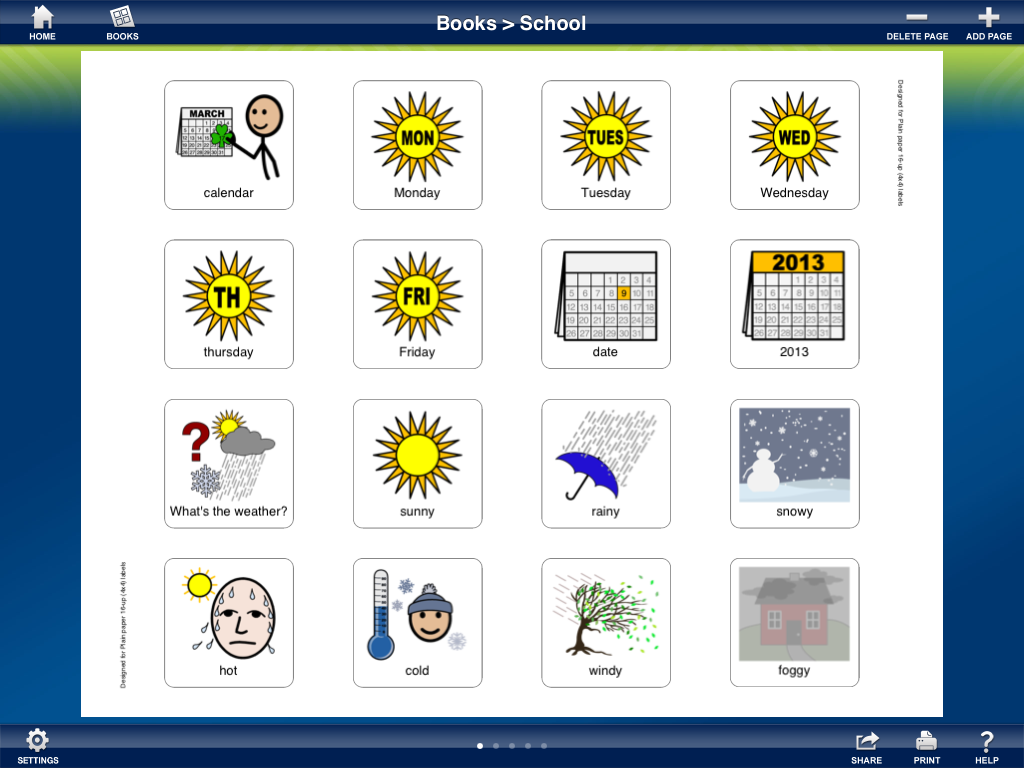

Page 2 - for use during breakfast.


Page 3 - for use during centers/free play.  This board has a combination of symbols and photographs.  I used photographs of classroom centers for students to select centers during free play time.


Page 4 - for use during lunch.  Again, this board has a combination of symbols and photographs.


Page 5 - for use during music class:


Page 6 - for socialization purposes, this page includes the children in the classroom so students can comment on attendance, etc.  You can easily use your iPad's camera to take pictures of each student in a class and create quick picture symbols!  Notice in this board I left some spaces blank.  If I choose to print like this, those spots will remain empty.


You can access each of your books by tapping the "books" icon in the top left corner or return home by tapping the house icon.


And that's the ProxTalker app!  Can you see how you do not need the ProxTalker device to use this app?  You can create picture symbols, picture supports, flash cards, therapy materials, etc. quickly and easily with this app!  Not to mention that you can use this app to create customized tags for your Logan ProxTalker device!  I like that you can group boards together into books and share the books via email.  With this option, you can create a set of boards for a student, access them yourself, and share with both parents and teachers!

The ProxTalker App (Professional) has multiple symbol libraries and the capability of using photographs.  This means that your options are endless when creating picture symbols, communication boards, and other visual supports!  In addition, it's more cost effective than a certain popular computer software designed for a similar purpose.

Head over to the app store and give the Lite Version a try!  Let me know what you think.  What types of materials/boards would you create with this app?


Disclaimer:  Although this app was provided to me by the developer, the opinions expressed in this review are mine alone.

Thursday, June 13, 2013

AAC Week: Logan ProxTalker


If you're anything like me, you may have heard of the Logan ProxTalker.  You may even have seen pictures of the device.  And, if you 're anything like me, you probably weren't sure exactly what the Logan ProxTalker was or what it did!  I was given the chance to try one out and I'm going to share my experiences with you today.


A Little Background:
The ProxTalker was developed by Glen Dobbs, a father and engineer.  Glen's son Logan was diagnosed with PDD-NOS at the age of two and a half.  When he was 4, Logan was introduced to PECS (Picture Exchange Communication System) by his Speech-Language Pathologist.  Logan became very good at using PECS to make his wants and needs known, but Glen still wanted him to have a "voice."  As he states, "the engineer in me took over" and the Logan ProxTalker Was developed!


So what is it?
The Logan ProxTalker is a mid-tech communication device that pairs PECS with voice output.  The PECS, or tags, are printed on or adhered to sturdy plastic cards that have radio frequency identification (RFID) chips embedded.  When the symbol is placed on any one of the buttons and pressed down, the message is "spoken."  The device has a built in microphone, adjustable volume control, and is run with 4 C batteries.

When I opened the box, this is what I saw (minus some packing material to prevent damage!):


Based on the information on the Logan ProxTalker website, this device is available in one of two formats.  First, you can purchase with a backpack.  The device snaps in to one side of the backpack, which has a zippered pouch in the front.  There's an extra strap if you choose to carry it over your shoulder:


Inside the back pack, the device is on one side, and there are Velcro pages for you to store/access your tags.


Not planning on transporting much?  The Logan ProxTalker also comes in a binder format.  The binder is actually mountable to a wheelchair or to a wall. The binder also comes with Velcro pages for tag storage:

Logan ProxTalker Binder closed (l) and open (r)
The device is the same with both purchasing options.  You can purchase the device with the binder and then purchase the backpack separately if you wish.  They are easy to switch with just a screwdriver or flat butter knife.  When you purchase this device you get:

  • 80 symbol tags
  • 20 blank tags (I'll go into these in a moment)
  • 4 Velcro pages
  • Maintenance tools 
  • Set of programming tags 

 *You can purchase more of any of the accessories listed above from the ProxTalker shop.

Using the Device:
Again, this device is really, really easy to use!  You grab a symbol, place it on any button and press!  The pre-printed symbol tags come with a message already recorded, but you can change the recording if you like (more on that in a bit as well!).  So, if you have a child working on Phase 1 PECS and they are requesting a puzzle, they would place the puzzle symbol on the device and press.  It doesn't take a major press to activate the button, so this device can be used with students with weakened muscles or low tone (I would consult with a child's PT/OT if you are considering this device, however, because it will require some control/accuracy to find a symbol, pick it up, and place it on a button).

requesting a puzzle

Further along in the Phases of PECS, you can use the ProxTalker to generate sentences of up to 5 symbols in length:


In the example above ("I want pink crayon"), the child would need to press each symbol to have the message spoken aloud.  Ugh!  I have kids that wouldn't be patient enough to do that.  Do you?  Well, good thing for us the ProxTalker comes with the little green circle button on the right in the picture below:


This is the "Speak All" tag.  When using this button, you line up your tags in the order you want.  Instead of pressing each one, you press the green circle and it will speak each tag in sequence from left to right!

Some more things you should know:
The ProxTalker comes with these programming tags.  When you press one of these on a button, you can modify the settings.  


The available actions on the programming tags include:  RECORD (this allows you to record a new message on a tag), ERASE (erase a preset message on a tag), INCREASE VOLUME (self explanatory!), DECREASE VOLUME (ditto), CHECK BATTERY (useful if you traveling, camping, on a field trip, etc.), DIAGNOSTICS (troubleshoot any problems you might be having).

In the true spirit of trialing a device, I had to replace the batteries.  They are really simple to access and replace!


ProxTalker in therapy:
I took this device to school and used it with a little boy who is (aside from a couple of words that are few and far between) non-verbal.  This boy picked up the concept of PECS in one therapy session, so I figured he would be a great student with whom to try out the ProxTalker!  He figured the device out pretty quickly as well!  We are still at the stage of using a single tag to make a request, but he's doing very well!  I also used this device with other students who are verbal.  See below for a description.

If you want to see the ProxTalker in action, check out this video:


Customizing the tags:
There are a few options for customizing the blank tags that come with the ProxTalker.  The blank tags come in both small and large sizes.  You may wish to use the larger ones for children with poor fine motor control.  


1.  The ProxTalker website has templates available for Communicate In Print, Boardmaker, and MS Word.

2.  There's an app for that!!  The ProxTalker App allows you to create communication boards using your own photos and preset symbols.  The boards you create can be organized into books and emailed to yourself, colleagues, and/or parents for printing.  You can use the boards on their own, or print on adhesive sheets and use with the blank ProxTalker tags!  (That means you don't need to have a ProxTalker to benefit from using this app!)  You can find the lite version HERE and the full version HERE.


3.  LessonPix also has a template for the ProxTalker device!  (If you don't already subscribe to LessonPix, you will want to head over there and check it out!  It's definitely worth the $36/year subscription fee!).  Simply add the icons you want to the tray and hit "Create Materials."  You can choose ProxTalker from the list of Materials Type and select the size of the tags you are using.


Since I was using a pirate theme in my therapy sessions this week, I created some tags so less verbal kids could participate in therapy sessions.  I printed the LessonPix symbols onto a sheet of labels that came with the ProxTalker:


Then I just peeled them off and stuck them to the blank tags:


Then I pressed the "record" tag and followed the instructions provided by the machine (press the tag you wish to record.  At the beep begin your recording, etc.).  Each tag allows for 8 seconds of recording time, so choose your message wisely!  This tag now says "Yo-Ho-Ho!" (check back next week for my book of the week and you'll see why I chose this message!).


4.  I noticed the shiny surface of the tags and thought, "I bet I could use a dry erase marker on here!"  I was right. :)  I wrote some sight words on the tags and worked on sentence forms/copula verbs with some of my kids:


My son was super excited about this activity and swapped out the food/color tags for about 20 minutes!


In Summary:
I really enjoyed trialing this device with my students (and my own child)!  It is a fantastic next step for kids who have learned and/or mastered the PECS system and want a "voice" as well.  I love the portability of the backpack.  I did find the binder to be a bit cumbersome, but I think you would want that format if you are planning on mounting the device.  With that said, I've trialed other devices before and found this one to be really, really user friendly!  ProxTalker is simple for SLPs, parents, and students to program and use...in fact, I only read the manual to figure out how to remove the ProxTalker from the backpack and how to change the batteries!  I also love that there are a variety of options for creating your own tags.  With all the options, you will definitely want to purchase more blank tags!  The possibilities are endless!

The price tag on a ProxTalker is up there (but not nearly as much as the popular high tech communication devices).  Chances are, an SLP won't be purchasing this item themselves, but may make a recommendation for a student.  If you'd like to try this device yourself, here's the link you will need.  If you have a student who would benefit from this device, the ProxTalker website has documents that you can download to request Medicaid funding.

Finally, I'd like to say "Thank you" to Glen for contacting me and letting me try out the ProxTalker, and a special shout out to Logan for inspiring his dad to create this amazing device!


Disclaimer:  Although the ProxTalker was provided for me to trial (yes, I have to return it!) for the purposes of this review, the opinions expressed are mine alone.
Related Posts Plugin for WordPress, Blogger...