Showing posts with label reading. Show all posts

Monday, July 29, 2013

App Review: Reading Aphasia

The content and variety of apps out there never ceases to amaze me!  Here's another fabulous app from the Virtual Speech Center that's geared toward adults with Aphasia, but really can be used with any client who struggles with reading comprehension.  Reading Aphasia was created by a certified speech and language pathologist.  It contains over 2,000 stimuli that are organized into 12 semantic categories to target reading comprehension at the word, phrase, and sentence levels.


From the main screen, you can tap Info to see how to use the app and to view a description of the app.  


You can also modify the Settings from the main screen.  Settings include user alternate count, automatic paging, random paging, and correct/incorrect sound clips.


When you're ready to begin tap Start and you will be prompted to Add and/or select students...


...and then select activities for each student.


Activities included in Reading Aphasia are:

Words:

  • Picture-Word Matching:  Students are shown a picture and they must select the matching word.
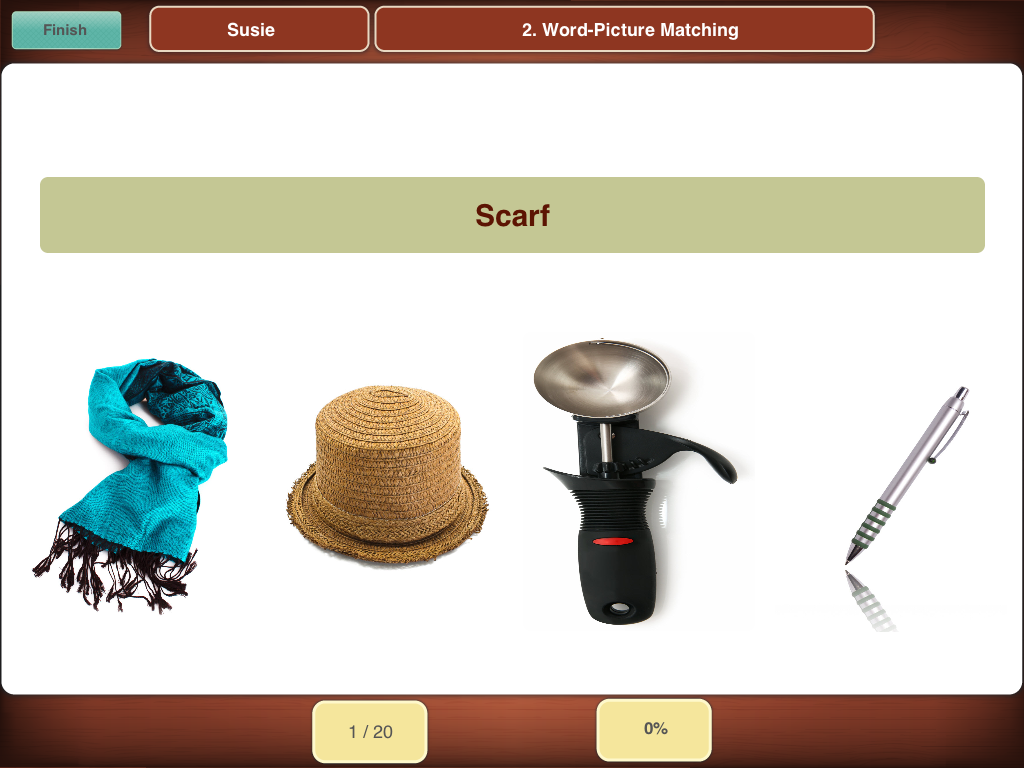
  • Word-Picture Matching:  Students are shown a word and they must select the matching picture.
  • Word-Word Matching:  Students are shown a word and they must select the word that is the same.
Phrases:
  • Picture-Phrase Matching:  Students are shown a picture and they must select the matching phrase.
  • Phrase-Picture Matching:  Students are shown a phrase and they must select the matching picture.
  • Phrase-Phrase Matching:  Students are shown a phrase and they must select the phrase that is the same.
Sentences:
  • Picture-Sentence Matching:  Students are shown a picture and they must select the matching sentence.
  • Sentence-Sentence Matching:  Students are shown a sentence and they must select the sentence that is the same.
  • Sentence Completion:  Students are given a sentence with a missing component.  They must select the word(s) that best complete the sentence.

Now, here is an example from each activity:


Words:

Picture-Word Matching

Word-Picture Matching


Word-Word Matching

Phrases:

Picture-Phrase Matching

Phrase-Picture Matching

Phrase-Phrase Matching

Sentences:

Picture-Sentence Matching

Sentence-Sentence Matching

Sentence Completion

Reports:
After you use the app, you can view your reports/data from each session by Activity or by Date:


Simply tap and you'll be able to see data by percentage:


And there you have Reading Aphasia!  Here are some of my thoughts:

Pros:

  • As with Comprehension Aphasia, Reading Aphasia can be used for more than just adults with aphasia.  This app can be used with pretty much any client who has reading difficulties.  You could also modify the app by reading the words for clients and having them select the appropriate responses.
  • The multiple levels.  Because of the levels, this app can be used with a wide age group as well.
  • The use of photographs is especially important when you are using this app with a client who has aphasia.  Photographic representation is less cognitively complex than a line drawing.  Because of this, the cognitive demand on the client is decreased, allowing them to focus on the reading target.
  • Data collection.  In-app data collection allows you to monitor progress over time.


Changes I would like to see in an update:

  • There was only one thing I could think of here.  I came across the item below.  I would refer to that picture as "glove" rather than "mitten" and most of my students would do the same.


The bottom line:
Reading Aphasia is a versatile app that can be used with a wide variety of age groups and disabilities.  You can use this app to target reading abilities, receptive language, vocabulary, and grammar/sentence construction.  This app is reasonably priced at $9.99 in the App Store.

Do you have this app?  What objectives are you using it to target?


Wednesday, March 20, 2013

App Review: Reading Comprehension Camp


Recently I was contacted by Jonathan at Smarty Ears about reviewing two of their apps to target reading skills.  Since the majority of my caseload is preschool, I asked Jonathan if he would agree to let one of my co-workers use the apps and write the reviews.  He was kind enough to agree.  

This review is written by Jennifer Malloy, MS, CCC-SLP.  (To see her review of Reading Rehabilitation Toolkit, click HERE).  Jenn splits her time between an elementary and middle school in my district.  Take it away Jenn!


Hi everyone!  Today I am reviewing another amazing app from Smarty Ears. This app is called Reading Comprehension Camp ($19.99 in iTunes). I have been using this app non-stop since receiving the code from Carrie. (Thanks again, Carrie!) This app is very user friendly and the students’ activity level and participation during therapy sessions has been fantastic.


The app opens to the home screen and the user has the ability to select “Student Lounge” or “Read.”
When “Read” is selected, the user is prompted to create and/or select the number of readers that will be participating in the activity. The app allows for up to four student’s data to be tracked at once.  The app allows the user to use student’s photos above their names or select an avatar.  My kids love seeing themselves!  The  “Student Lounge” allows the user to select a student and data from across all sessions for that specific user will be displayed. Perfect for quick data collection!


Now for the good stuff!  After selecting up to four readers, the app will allow the user to choose a story. The stories are rated from 1-5, increasing in length and complexity.   Under each rating, there are ten stories to choose from! 


A single picture related to the story is displayed on majority of the screen with the written print on the bottom of the screen.  This set up can be changed under settings. The font can be made larger and the picture on the screen can be made smaller.


The student has the option to listen to the story as well, by pressing the arrow button on the lower left side of the picture. 

When the student has finished reading and/or listening the story, the clinician can select the quiz button on the left hand side of the screen. This was my favorite part of the app. The quiz utilizes so many types of questions and assesses an array of speech and language concepts.

  1. Who
  2. What
  3. When
  4. Where
  5. Why
  6. How
  7. Inferences
  8. Cause and Effect
  9. Compare and Contrast
  10. Sequencing
  11. Vocabulary/Context Clues


The quiz allows the student to read the question independently or have the question read to him/her by pressing the speaker button to the left of the question.  Four answers are displayed for the student to choose from. The student has the text displayed while answering questions to go back and look for the correct answer, if he/she is unable to remember independently.


There is a hint button that highlights the sentence in the short story that contains the answer for the student to review and then try to answer the question.


The app is very customizable to the student’s current performance level.  There are options to “Hide Image” and “Hide Text.”  “Finish quiz” can be selected at any point during the quiz, even if the student has not completed it in its entirety.  The clinician can then go to the student lounge, click on the child’s name, and view how the student answered the various questions.


How I Used the App:


  • I do not have many students that are fluent readers, however I used this app daily after receiving it.
  • ASSESSMENT:  It was progress report time and I had over 20 students with goals related to answering mixed “wh” questions to assess comprehension.  I chose the level appropriate for each student and read the story aloud to him/her. After the story I asked the posed questions and tracked the student’s answers. I did not give the students a multiple-choice option at that time. I had to see what they could do independently! During therapy sessions, however, I will give the students cues and prompts while using multiple-choice options to the posed questions. This was a great tool not only for the students, but for me as well! With ten stories in each of the levels, I did not have to read the same story 9 times in a single day!!!
  • ARTICULATION I used this app with a pair of students I currently treat for articulation. The students are beginning to read paragraphs while keeping their accuracy with target  speech sounds.  A bright red RECORD button is located on the upper right hand corner on the story display page. I had the students record their speech while reading the short story.  After they listened and assessed their own speech. One student was surprised how well he did. He said, “Miss Malloy I’m almost perfect with /r/!” 

Likes:

I enjoyed this app very much. It helped while collecting data for progress reports! The students enjoyed the stories and the pictures. The students were engaged and participating during the entire session!! The app is very flexible, it lends itself to target many goals, not only reading comprehension.  The data collection is key when you have a caseload over 50!

Changes I would like to see in an update:

1. There are some typos in the stories and this really confused some of the students that did use the app for reading.  One story opens and the Zebra’s name is Zack and then changes to Zach. Not a huge change for fluent readers, but the students had difficulty with this change.  Other errors included adding words that did not belong. “Asked Zach as he they sat down to eat the cake in the kitchen.” I understand typos happen but it throws kids for a loop!
2. This one is just a quirky personal thing. On the data collection page, the month and date are transposed so instead of: Month/Day/Year it is Day/Month/Year.

Overall I thoroughly enjoy this app and I look forward to using it for many of my upcoming sessions!


~Jenn

PS, To watch a video tutorial and see Reading Comprehension Camp in action, scroll down to the bottom of this page.

Disclaimer:  Smarty Ears provided a copy of Reading Comprehension Camp for the purposes of this review and giveaway.  However, opinions expressed are those of the SLP who provided the review.


a Rafflecopter giveaway

Monday, March 11, 2013

App Review: Reading Rehabilitation Toolkit


Recently I was contacted by Jonathan at Smarty Ears about reviewing two of their apps to target reading skills.  Since the majority of my caseload is preschool, I asked Jonathan if he would agree to let one of my co-workers use the apps and write the reviews.  He was kind enough to agree.  

This review is written by Jennifer Malloy, MS, CCC-SLP.  Jenn splits her time between an elementary and middle school in my district.  Take it away Jenn!


I was lucky enough to review another amazing app - the Reading Rehabilitation Toolkit from Smarty Ears ($9.99 in iTunes). I currently use many Smarty Ears apps in speech and language therapy daily so I was extremely excited to review this app!

This app is a great tool to increase student’s reading fluency as well as reading comprehension.
It allows both quick play as well as creating users. If "create a user" is selected, data is tracked and recorded by day and level.  After entering the student’s name, the student is able to select an avatar. There are many avatars to choose from!


**BONUS:  Selecting an Avatar is a great way for students to use descriptive words to select a 
specific avatar.  I don’t let them point to select, a selection is made my using your words!


The next screen allows the user to select one of six levels of difficulty. The six levels (as described in the ABOUT section of the application) are as follows:


  1. Word-Images match: This activity provides users with one word on the screen, which they must attempt to read and identify the corresponding image.
  2. Image-Words match: This activity provides users with one image and they must identify the corresponding word among several words.
  3. Phrase-Images match: This activity provides users with one phrase and they must identify the corresponding image.
  4. Image-Phrase match: This activity provides users with one image and they must identify the corresponding phrases among several phrases.
  5. Read and Answer: Users must attempt to read simple questions and answer based on the provided scenes.
  6. Phrase Building: This is the activity that integrates reading and writing. Users are now able to attempt composing the simple phrases used throughout the application on previous activities independently by placing words on the screen.


Word Images Match:


The first level, Word Images Match, allows student to read one word and select corresponding picture from a field of 5.  After selecting the correct corresponding picture, the student records him/herself reading the target word.  The app allows user to track student’s progress.  After attempting to read the target word the follow options are available to track data: 1. Unable to read aloud  2. Read with assistance 3. Read independently.

Image Words Match:


The second level, Image Words Match, allows the student to look at a single picture and select the target word from a written field of 5. Again, after selecting the correct corresponding word, the student records him/herself reading the target word.  The app allows user to track student’s progress.  After attempting to read the target word the follow options are available to track data: 1. Unable to read aloud  2. Read with assistance 3. Read independently.


Phrase Images Match:


The third level, Phrase Images Match, allows the student to read a small, three word, phase and select the corresponding picture from a field of 5.  After selecting the correct corresponding picture, the student records him/herself reading the target phrase.  The app allows user to track student’s progress.  After attempting to read the target word the follow options are available to track data: 1. Unable to read aloud  2. Read with assistance 3. Read independently.


Image Phrase Match:


The fouth level, Image Phrase Match, allows the student to see a single image and select the target phrase from a written field of 5. Again, after selecting the correct corresponding phrase, the student records him/herself reading the target word.  The app allows user to track student’s progress.  After attempting to read the target phrase the follow options are available to track data: 1. Unable to read aloud  2. Read with assistance 3. Read independently.


Read and Answer:


The fifth level, Read and Answer, allows the student to look at a picture, read the question, and select an answer from a written field of 5.  The field contains 5 single words that answer the “wh” or “how” question presented with the picture. When an incorrect selection is chosen an unfriendly chime is sounded.  The student receives a checkmark and an uplifting sound when the correct answer is selected.


Phrase Building:

The sixth, final level, Phrase Building, allows the student to look at a picture and create a phrase using three words.  If the words are arranged in the incorrect order that unfriendly chime sounds again. If the words are placed to make the correct phrase, an uplifting chime sounds and a checkmark appears.  After selecting the creating the correct phrase, the student records him/herself reading the target phrase.  The app allows user to track student’s progress.  After attempting to read the target word the follow options are available to track data: 1. Unable to read aloud  2. Read with assistance 3. Read independently.


Likes:

  • It is very versatile I used this application with both my middle school students as well as my home health care clients.
  • User Friendly: Easy to navigate while using and while reviewing data.
  • Increases with levels of difficulty.
  • Progress tracking and data collection.

Dislikes:

  • None that I can think of!


The Bottom Line:
I really enjoyed using this app. It is straight forward and user friendly, two aspects I look for when using apps for speech and language therapy.  I liked that the students were involved with selecting avatars and recording their voices. This avatars and voice recordings increased the students’ focus and interest. 


~Jenn

PS, To watch a video tutorial and see Reading Rehabilitation Toolkit in action, scroll down to the bottom of this page.


Disclaimer:  Smarty Ears provided a copy of Reading Rehabilitation Toolkit for the purposes of this review and giveaway.  However, opinions expressed are those of the SLP who provided the review.
Related Posts Plugin for WordPress, Blogger...